Fix Common Remote Desktop Connection Problems
Troubleshoot remote desktop connection failures, authentication errors, slow screens, input problems, and dropped sessions with a focused checklist.
GoMyid ·
A remote desktop connection can fail before it starts, stop at authentication, open without usable input, or disconnect halfway through a task. Those symptoms point to different questions. Treating all of them as "the internet is broken" usually leads to unnecessary changes and makes the next attempt harder to interpret. A better approach is to identify the stage of the failure and change one relevant condition at a time.
This guide gives you a practical troubleshooting order for GoMyid remote sessions. It starts with the information you can verify from both ends, then separates destination availability, authentication, screen updates, input, and interruptions. It does not prescribe generic router changes or assume that Windows' built-in Remote Desktop configuration applies to GoMyid. Use the current product guidance when a problem reaches a deployment-specific setting.
Use the web audit view when a managed operation fails
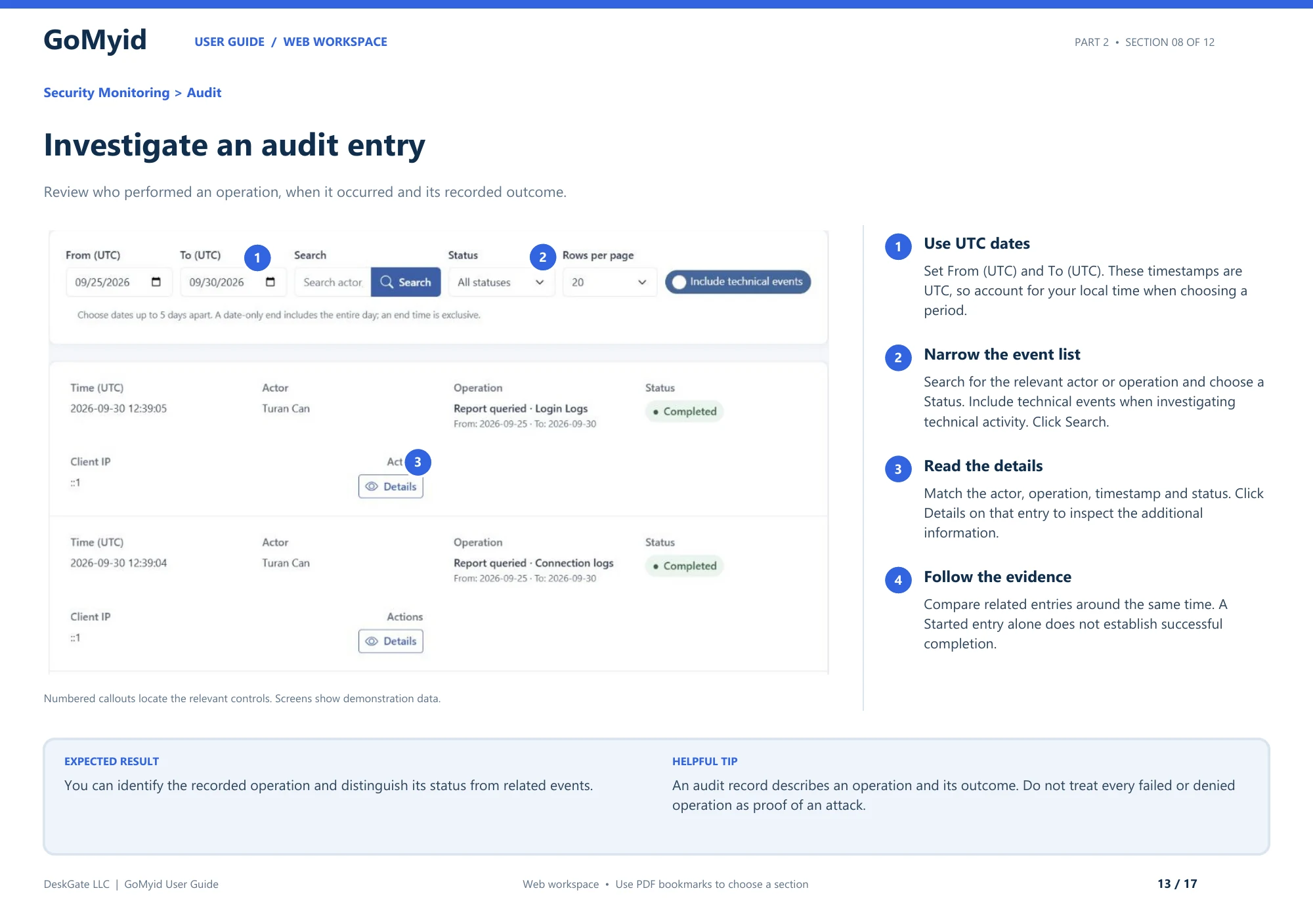
A client connection problem and a web administration failure are not necessarily the same event. When the issue involves an administrative operation in the management workspace, the documented audit view provides a concrete way to inspect the recorded outcome. It is not a promise that every failed desktop connection will appear as an audit row.
- Open Security Monitoring > Audit.
- Set From (UTC) and To (UTC) around the operation. Convert the reported local time appropriately instead of assuming the displayed timestamps are local.
- Search for the relevant actor or operation and choose a suitable Status. Include technical events when investigating technical activity.
- Click Search, match the actor, operation, time, and status, then open Details on the relevant entry.
- Compare related entries around the same time before deciding whether the operation completed.
A Started entry alone does not establish successful completion. Likewise, a failed or denied operation is evidence to investigate, not automatic proof of an attack. Record what the actual row says and keep that finding separate from the remote user's description of the screen problem. This makes escalation more precise without mixing different kinds of events.
Describe the symptom before trying a fix
Write down what you expected and what actually happened. "Connect returns an error before any desktop appears" is more useful than "remote access does not work." "The screen updates, but typing goes into the local application" is more useful still. A precise description lets you avoid troubleshooting a network problem when the actual issue is window focus.
Capture the exact message if one appears, along with the time and the action immediately before it. Do not paraphrase a specific error into something more dramatic. The wording may distinguish an unavailable destination from an authentication failure. If you share a screenshot, remove credentials and unrelated personal information before sending it through the intended support channel.
Ask whether the problem is new. Did this same pair of devices work recently? Did either computer restart, change networks, or receive a configuration change? You are not looking for someone to blame. You are identifying the smallest set of differences between a working session and the current one. That context is often more valuable than a long list of speculative fixes.
Confirm that you are reaching the intended computer
Start with the destination ID or device entry. In GoMyid's Windows interface, the details under "This computer" describe the local machine, while the remote area identifies the destination. Entering your own ID or using an old saved entry can make the rest of the troubleshooting irrelevant. Confirm the current destination through a trusted channel.
If you are using a managed directory, check the device's context rather than relying on its name alone. Similar names can exist across branches, and a machine's owner or role may have changed. Ask the person at the location to confirm the device you mean. A directory is useful only when the record and the real computer still correspond.
Do not proceed with a desktop that looks unexpected. A connection that opens successfully can still be the wrong connection for the request. Stop, verify the destination, and return to the approved workflow. The first-desktop check provides a simple way to establish that both people recognize the same machine.
Check whether the destination is actually available
Ask someone at the remote location whether the computer is running and usable. A remembered device record does not prove that it is currently awake or connected. A laptop may have been closed, moved to another network, or left waiting for a local startup step. Those conditions need a different response from a failed password.
Confirm the remote application's state according to the configured GoMyid workflow. Is the intended client available? Is the relevant access setting in the expected state? Have the remote person read what they see instead of giving them a series of blind instructions. Their observation can prevent unnecessary changes on the connecting computer.
Check power and expected interruptions. If a restart is already underway, wait for the normal startup process and confirm readiness before retrying. If the computer is scheduled to leave the office or lose power, arrange a better time for support. Remote access depends on the destination remaining available; it cannot turn an unavailable machine into a reliable endpoint by itself.
Separate authentication from connectivity
An authentication problem means something different from failing to reach the destination. Read the message and note whether the application contacted the remote side before rejecting the attempt. Confirm that you are following the required credential or approval workflow for the current configuration. Do not assume that a Windows account password is interchangeable with a remote application's authentication details.
Check entered values carefully through the approved private channel. Remove accidental spaces if the field and workflow call for an exact value, and confirm that the information is current. Avoid repeated attempts with guesses. Repetition does not improve the quality of uncertain information and can complicate the support process.
If approval is required, have the person at the remote computer describe the prompt and confirm they understand the request. A delayed response is not necessarily a technical failure. The person may be looking at another window or may not recognize the request. Explain the expected action without asking them to approve anything they have not understood.
Check the permission for the specific task
You may be able to establish a session but not perform every action. Viewing, controlling, transferring files, and running commands are different capabilities. GoMyid's overview shows separate connection modes and management permission controls. Confirm the capability needed for the current task rather than interpreting every unavailable button as a broken connection.
In a managed environment, access may also depend on the operator's assigned device scope. A technician who can support one group should not assume the same access to every station. If the request falls outside the assigned responsibility, involve the appropriate administrator. Do not broaden permissions informally just to make a single support call easier.
If the limitation is expected, choose an authorized workflow or explain what approval is needed. If it is unexpected, record the operator, destination scope, requested action, and observed result without exposing credentials. Those details give an administrator something concrete to review. A general request to "give full access" loses the context needed to make a careful correction.
Distinguish a slow session from a frozen computer
Ask the person at the destination whether the computer responds normally to local input. If the business application is slow for them too, the problem may be on the destination rather than in the remote display path. If the local computer is responsive but the remote picture lags, investigate the session and connection conditions separately.
Use a repeatable action such as opening a folder or moving a window. Avoid judging performance from a constantly changing video or a busy application while also changing display settings. If your client provides quality controls, change one setting and repeat the same action. You need a comparison that tells you whether usability actually improved.
Check readability as well as responsiveness. A lower-quality display is not useful if you cannot read the error message you connected to investigate. The right balance depends on the task. For a settings check, legible text may matter more than smooth movement. The Windows display guide covers that practical tradeoff.
When the picture works but the mouse or keyboard does not
First, confirm which window has focus. The local desktop may still be active behind the remote client, or a dialog may be intercepting input. Try a harmless, visible action and observe both sides. Do not keep typing a credential or command while you are uncertain where the characters are going.
Check the selected interaction mode and available controls in your client. A viewing-oriented session or a permission limitation may explain why input is unavailable. On Android, a touch mode may behave differently from a native mobile application. Use the controls described by your installed version rather than assuming every gesture is passed directly to the remote computer.
If characters appear incorrectly, test a short harmless sentence and check the keyboard layouts and shortcut behavior involved. Resolve the mismatch before entering paths or commands that depend on exact punctuation. For mobile-specific guidance, see the Android keyboard and shortcut section. Accurate input matters more than completing the action quickly.
When the remote view is blank or unexpected
A blank or unexpected view needs more context before you choose a remedy. Ask the remote person what is visible locally and whether they have changed users, opened a dialog, or switched displays. If the computer has several monitors, check the selected display using the controls available in the session. An application can appear missing simply because you are viewing another screen.
Record whether the view was blank from the start or changed after a particular action. That distinction can separate an initial display problem from an interruption caused by a restart, account change, or application behavior. Avoid guessing at a graphics or security setting without evidence. A broad change can affect the computer after the support session ends.
If the installed client offers a documented display or refresh control, use it as directed and observe the result. If the state remains unclear, stop consequential work and collect the exact version and symptom information for support. Do not operate a desktop blindly based on where you think a button should be.
Investigate sessions that disconnect
Note when the disconnection occurs. Does it happen immediately, after a repeatable action, during a transfer, or when the remote computer changes networks? A pattern can be more informative than the number of failures. Check whether a restart, sleep transition, or application closure explains the timing before treating it as an unexplained network outage.
Ask what happened on both sides at that moment. The connecting device may have changed connectivity while the destination remained stable, or the destination may have become unavailable. For a mobile session, moving between locations can introduce another variable. Keep the observations separate so you do not make changes on the wrong device.
After reconnecting, inspect the result of the last action before repeating it. A click or command may have reached the destination even if its visual response never returned. This is especially important for file operations and settings changes. The interrupted-session procedure explains how to resume without assuming that nothing happened.
Keep file-transfer problems separate
A desktop connection can work while a particular file transfer fails. The cause may involve a destination path, permissions, a file in use, storage, or the transfer operation itself. Start with the exact message and identify which location it refers to. Do not conclude that the entire remote connection is broken merely because one file cannot be copied.
Confirm the Local and Remote paths and the intended direction. Check whether a matching file already exists and whether the selected destination is writable through the approved workflow. Use a harmless file to understand a new interface, but do not scatter test files across production folders. Keep any necessary check narrow and remove its temporary result when the check is complete.
If the transfer was interrupted, inspect the destination before retrying. Do not assume that the visible file is complete or that the application will resume automatically. Follow the supported behavior of your version and verify the final result. The file-transfer recovery guide covers that process in more detail.
Change one condition at a time
Keep a short record of what you changed and what happened next. For example, note that you corrected the destination ID, retried once, and reached authentication. That is progress even if the session is not yet open. It narrows the remaining problem and helps another technician continue without repeating the same work.
Avoid making simultaneous changes to credentials, permissions, network settings, and the application. If the next attempt succeeds, you will not know which change mattered or whether another change introduced unnecessary access. A disciplined sequence is often faster overall because it produces useful evidence with each attempt.
Reverse temporary diagnostic adjustments that are no longer needed, using the approved process. Do not leave a machine in an unusual state because the connection finally worked. If an adjustment must remain, explain its purpose and owner. Troubleshooting is complete only when the intended workflow works and the surrounding configuration is understood.
Prepare a useful support handoff
If the problem requires product or network support, provide the symptom, exact message, approximate time, client version, device roles, and the last known working condition. Include the small set of checks already completed. This helps the next person begin at the current evidence rather than asking you to repeat an entire troubleshooting script.
Separate observations from assumptions. "The remote user can use the desktop locally" is an observation. "The server must be down" is a conclusion that may not be supported. Clear reporting makes escalation more efficient and reduces the chance that someone changes an unrelated part of the environment in response to a confident guess.
Send only the information needed through the intended support channel. Do not include passwords, full private documents, or unrelated screenshots to make the report look thorough. For business support, keep the request tied to the appropriate device and owner. The support-record guide shows how to keep that context useful.
Use a working session as a comparison
If an authorized connection to another known device works, note exactly what that comparison establishes. It may show that the local client can complete a session under those conditions. It does not prove that the original destination has identical permissions, availability, or connectivity. Keep the comparison narrow enough to be useful instead of turning it into a general conclusion about every computer on the network.
Likewise, if another authorized operator can reach the original destination, compare the relevant differences between the two workflows. The operators may have different scope, saved details, or client versions. Record those differences and review them through the normal administrative process. Do not borrow the other person's credentials simply to make the failure disappear. A good comparison helps explain the cause while preserving the identity and responsibility of each operator. Once the cause is understood, apply the appropriate correction and repeat the original user's task.
Frequently asked questions
Should I restart both computers first?
Not automatically. A restart may be appropriate for a specific condition, but it can interrupt work and remove useful context about the failure. First identify the symptom and check destination, availability, and the relevant application state. If a restart is needed, save work and agree on how access will be restored afterward.
Why can the remote user browse the web but not connect?
General web access shows that some connectivity is available; it does not prove that every application requirement is satisfied. The problem may also be authentication, access settings, or the destination being misidentified. Follow the troubleshooting stages before making network changes, and use the current product guidance when reviewing deployment-specific requirements.
Will repeated password attempts help?
Not when the underlying information is uncertain. Confirm the current authentication workflow and details through the appropriate private channel. Repeated guesses can complicate the situation without providing useful evidence. An authentication error should lead to a careful credential or approval check, not a list of unrelated passwords to try.
Does a dropped session mean a time limit was reached?
Not necessarily. A technical interruption can result from power, connectivity, restarts, or application availability. Check the timing and message rather than assuming a commercial restriction. GoMyid's free-use information and a particular session's technical behavior are separate questions. The free-access checklist explains that distinction.
Should I disable security software to troubleshoot?
Do not use broad protection changes as a general remedy. Identify the specific failure and follow the approved support process for the device and network. If a control is involved, an authorized administrator can review the actual requirement and the relevant evidence. Removing protections without understanding the cause can create a larger problem than the failed session.
How do I know the problem is resolved?
Repeat the original task under the intended conditions and verify the result with the user. Confirm that temporary changes have been reviewed and that future access is in the expected state. A single successful connection is useful, but it may not prove that a recurring interruption or task-specific error has been resolved. State exactly what you checked.
Interface reference: GoMyid User Guide, page 13: Investigate an audit entry. This article uses the documented example interface; it does not report a live deployment test.