Access Your Computer from Android with GoMyid
Use GoMyid from Android with practical advice on connection setup, landscape viewing, touch input, keyboard shortcuts, and everyday mobile support.
GoMyid ·
A phone is not a replacement for every tool on your desk, but it can be the right tool when you need to check a computer while you are away. You might want to see whether a job has finished, help someone find a setting, or confirm that an application is showing the expected result. Remote desktop from Android puts that computer's screen within reach. The challenge is making the interaction accurate on a much smaller display.
This guide explains how to plan an Android remote desktop session with GoMyid, use mobile input deliberately, and recognize when a task should move to a larger device. The product illustrations show GoMyid's Android connection hub, landscape session, keyboard shortcuts, and touch controls. They are examples of the interface, not access details to use for your own connection. Follow the controls and supported workflow in your installed version.
Use GO, Keys, and the two Android input modes
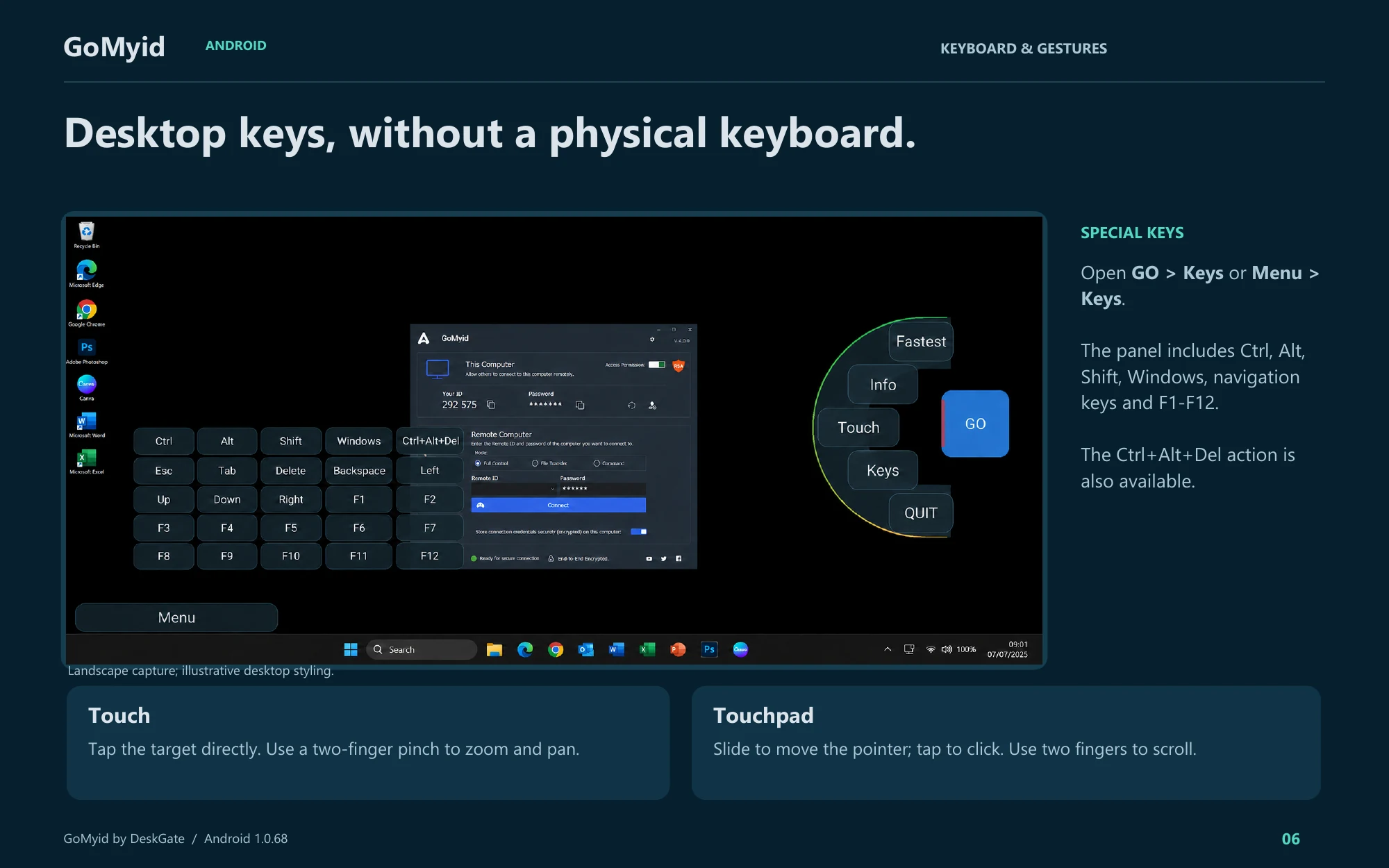
The Android guide distinguishes direct touch from touchpad-style pointer control. Choose the behavior intentionally before trying to select a small Windows menu item. The documented controls below refer to the illustrated Android 1.0.68 interface.
- Tap the blue edge handle to expand GO. Tap GO again when you want to collapse the controls.
- Open GO > Keys or Menu > Keys for Ctrl, Alt, Shift, Windows, navigation keys, and F1–F12. The guide also shows a Ctrl+Alt+Del action.
- In Touch mode, tap the target directly. Use a two-finger pinch to zoom and pan.
- In Touchpad mode, slide to move the pointer, tap to click, and use two fingers to scroll.
- Use QUIT to end the remote session when the task is complete.
Try the selected mode on a harmless window before editing a document. If a tap selects the wrong location, first confirm which mode is active instead of repeating the gesture. Keys opens special desktop controls; the keyboard button opens text input. That distinction is particularly useful when a shortcut is needed but the ordinary Android keyboard does not provide the required key.
Which remote desktop tasks make sense on Android?
Short, well-defined tasks are a good starting point. Checking whether an application is open, reading a status message, or helping a colleague identify a dialog can work well on a phone. These jobs have a clear stopping point and do not require constant switching among large windows. You can often answer the immediate question without moving the entire workday onto a small screen.
More demanding tasks need a different judgment. Editing a long spreadsheet, comparing several documents, or entering many technical commands can be awkward even when the connection itself works correctly. The limitation may be the screen and input method rather than the remote access software. Choosing a laptop for those jobs is a practical decision, not a failure of mobile access.
Think about your surroundings too. A quiet room with a stable connection is different from a crowded train. If you cannot read the screen privately, hear the person requesting help, or enter information accurately, postpone sensitive work. A phone makes access portable, but it does not make every location a suitable place to operate someone else's computer.
Get familiar with the mobile interface
GoMyid's Android overview shows a connection hub with areas for this device and the computer you want to reach. It also shows remote-device entries and connection controls. Before starting a real task, identify which information describes your phone and which fields identify the destination. The distinction is the same one used in the Windows client, but the mobile layout presents it in less space.
The illustrated session controls include landscape viewing, keyboard options, touch controls, and a menu arranged around the active screen. Spend a moment locating the controls before you need them. Trying to discover a shortcut while a remote application is waiting for input can lead to accidental actions. A simple familiarization session is more useful than memorizing every visible icon.
The overview is a product reference, not a promise that every device or version displays identical controls. Android screen sizes, orientation, and the installed application version can affect what you see. Use the current interface to confirm the available action. If an option is unclear, stop and read its label instead of tapping several similar icons to see what happens.
Prepare the phone and the remote computer
Start from the official GoMyid download page or the official distribution destination linked there. Confirm that you are using the intended application rather than a similarly named listing or an unsolicited installation link. For a company-managed phone, follow the approved distribution process. Your organization's device rules still apply when the application is used for a brief support task.
Check battery and connectivity before a session that could take time. A phone running low on power or moving between unstable networks can make a simple task harder to complete. Keep the destination computer available as well. It should be running and ready for the configured connection workflow. Mobile access cannot compensate for a remote computer that is shut down or waiting for local intervention.
Decide how you will communicate with the person at the remote computer. A separate trusted channel is helpful if the session has trouble starting or if the screen stops updating. Tell them you are working from a phone so they understand why detailed typing or multiwindow tasks may take longer. Agree on the specific result you will check before ending the connection.
Make a first connection from Android
Confirm the destination through the normal trusted process, then enter the details required by the supported GoMyid workflow. Read the destination identifier carefully on the smaller display. If someone is providing it by voice, repeat it back once. Use the current request's details rather than assuming a remembered device entry still refers to the computer the person is using today.
Complete the required authentication or approval steps for your configuration. Do not treat the appearance of a remote device in a list as proof that you have permission for the current task. A directory helps identify a destination; the agreement about what you can do there comes from the people and policies responsible for the device.
Once connected, begin with a harmless visual check. Ask the remote person to identify a familiar area or open a nonprivate folder. Confirm that you can distinguish the remote desktop from the application's own controls. Before making a change, try a simple interaction that both people can recognize. This makes input mistakes easier to catch before they affect real work.
For the full connection sequence, see the first-connection walkthrough. Its destination, permission, and completion checks apply on mobile too. The Android-specific work is choosing an input method and display arrangement that let you perform those steps accurately.
Use landscape view when it helps the task
A desktop screen is usually wider than a phone held upright. Landscape viewing can give menus and application windows more usable horizontal space. Try it before deciding that a remote interface is too cramped. The goal is to see enough context to understand the next action, not merely to make the entire desktop fit into a tiny rectangle.
After changing orientation, check where the controls and keyboard appear. A keyboard that occupies much of the screen can hide the field you are editing. If you cannot see the target, dismiss the keyboard, confirm focus, and reopen the input method deliberately. Blind typing is especially risky when two adjacent fields accept different kinds of information.
Do not assume that full-screen viewing is always best. Sometimes a slightly smaller view with readily available controls is more comfortable than a view that requires repeated menu gestures. Use a harmless task to compare the options. When helping another person, explain any pause you need to adjust the display so they do not mistake it for a frozen session.
Make touch input predictable
Touching a remote desktop is different from touching a native Android application. The remote program may expect a mouse pointer, right-click, or drag action rather than a familiar mobile gesture. GoMyid's Android overview shows controls for mouse actions and touch-oriented interaction. Confirm the selected input behavior before attempting a precise operation.
Practice on a harmless window. Move it, select a folder, and open a context menu using the available controls. Notice whether your finger position corresponds directly to the pointer or whether the chosen mode behaves more like a touchpad. Understanding that relationship is more useful than tapping repeatedly when the pointer does not land where you expected.
Be careful around small destructive controls. A close button beside a maximize button, or a delete action beside a rename action, can be difficult to target. Increase the useful view or move to a larger device when accuracy is uncertain. An extra minute spent improving the input arrangement is better than recovering a change that should never have happened.
Handle text and keyboard shortcuts carefully
Before entering a long path, type a short harmless sentence into an appropriate field. Confirm the characters and the destination window. The phone's keyboard, the remote keyboard layout, and the client controls may each influence the experience. A correct first sentence gives you confidence that ordinary typing is going where you expect.
Long commands deserve additional care. Review every path and argument before execution, and avoid copying unfamiliar commands from a message simply to save typing. If the work requires extensive administrative input, consider switching to a computer with a full keyboard. Mobile convenience should not come at the expense of knowing what you are sending to the destination.
Keep the screen readable without chasing perfect picture quality
The most useful display is one that lets you complete the task. A crisp image is helpful for reading small text, while a more modest quality setting may make interaction more responsive on a constrained connection. If your installed version offers quality controls, adjust one at a time and repeat the same simple action to compare the result.
Avoid evaluating responsiveness while the workload is constantly changing. A moving video, a busy application, and a static settings page require different amounts of visual updating. Test with the kind of screen you actually need to use. Reading an error code accurately may matter more than how smoothly an unrelated animation moves.
If the remote screen is readable but feels delayed, ask the person at the destination whether the computer itself is responding normally. A slow business application can look like a remote access problem. The connection troubleshooting guide separates display, input, network, and destination-computer symptoms.
Be deliberate about files on a mobile device
Viewing a document on a remote computer is different from copying it to your phone. A transfer creates another copy with its own storage and handling requirements. Before using any supported transfer workflow, confirm where the file should go and whether that destination is appropriate. Do not assume a phone's general download folder is the right place for company information.
GoMyid's Android overview includes a File Transfer control, but the exact transfer workflow should be checked in your installed version. Confirm the direction and the selected paths before starting. Afterward, verify the resulting file rather than assuming that initiating the operation proves it completed. For detailed transfer planning, read the source-and-destination checklist.
If all you need is to read a value or check a document's status, a transfer may be unnecessary. Staying within the remote workflow can avoid creating an additional copy that later needs cleanup. Choose the method that meets the task with the least confusion about where information is stored and who can reach it.
Plan for calls, network changes, and interrupted sessions
Phones receive calls, notifications, and other interruptions that can draw attention away from a session. Before starting a consequential action, make sure you can stay focused through the result. If you have to switch away from the app, do not assume that every input completed just because you tapped a control before leaving.
When you return, inspect the remote state. Ask the person at the destination what happened if necessary. Repeating a click without checking can submit a form twice or repeat a file operation. This matters most when the action could replace data, change a setting, or interrupt connectivity. Treat uncertainty as a reason to verify, not to tap faster.
If a session disconnects while moving between networks, reestablish communication first. Confirm that the destination is still ready, reconnect through the normal workflow, and inspect the last task's result. Avoid making broad network or security changes on either side simply to get a mobile session back. Use the product's documented requirements and the organization's approved support process.
Protect the session when you are away from your desk
Consider who can see the screen. A small display is not automatically private, especially in public places or when someone is sitting beside you. Avoid opening unrelated personal or business material during a support task. If the work requires confidential information, choose a more suitable location or device rather than trying to hide the screen while operating it.
Review remembered access on the phone. Saving connection details may be convenient, but it also means the device continues to hold information after the support request ends. Follow your normal device-protection practices and remove access that is no longer needed. If the phone changes ownership or becomes unavailable, include remote access in the response process.
The broader guide to saved remote access explains the distinction between ending a session and removing future access. On a phone, that distinction is particularly useful because the device travels with you and may be used in many different contexts throughout the day.
Build a short mobile support routine
Use the same opening each time: identify the destination, agree on one task, confirm the connection, and check that input is understandable. Keep the first action small. A repeatable opening is easier to follow when you are away from your desk and have fewer visual cues than you would on a large monitor.
During the task, alternate control deliberately with the remote person. Ask them to pause typing while you make a precise change, then have them try the result. If the work becomes more complex than expected, say so and choose a better setup. Moving the task to a laptop can be the most efficient next step rather than an interruption to apologize for.
End by verifying the original result, disconnecting, and reviewing any saved details or copied files. For business support, record what changed and whether follow-up remains. The session's value is the resolved task, not how long you stayed connected from a phone. A clear ending makes the next support interaction easier for everyone involved.
Frequently asked questions
Is a tablet better than a phone for remote desktop?
A tablet can provide more room for desktop controls and text, which may make detailed work easier. A phone is more convenient for brief checks when it is the device you already have. Test the actual task on the device you intend to use. Screen size is only one factor; input controls, connectivity, and the surrounding environment also affect accuracy.
Can I use Android to work with a Windows desktop?
GoMyid's product overview shows a mobile remote desktop workflow. Confirm the current supported configuration for your devices, then test the intended task with the destination available. The Windows computer still needs to be reachable and appropriately authorized. For preparing that side, see the Windows setup checklist.
Will a mobile data connection always be good enough?
There is no single answer for every location and task. Stability, delay, available capacity, and the remote workload all affect the experience. Try a representative task and judge whether you can read and interact accurately. Do not rely on a signal indicator alone as proof that a long or detailed remote session will be comfortable.
Why does a tap behave differently from a normal Android app?
The application at the destination may be a desktop program expecting mouse and keyboard input. The remote client translates your interaction according to its selected controls. Check the available touch or pointer mode and practice with a harmless window. Understanding the mode usually helps more than repeating taps without knowing how they are being interpreted.
Is closing the app enough to remove access?
Ending the current connection and removing the ability to reconnect are separate concerns. Use the supported disconnect workflow, then review remembered details and any continuing access arrangement. If the task was a one-time support request, do not assume that saved information should remain indefinitely. Follow the configuration and ownership rules for both devices.
What should I do if the task is too difficult on a phone?
Pause before making uncertain changes, explain the limitation, and move to a more suitable device or schedule a follow-up. Keep notes about the destination and the current state without exposing credentials. The workflow planning guide can help you choose the right tool for the work instead of forcing every task into the first device available.
Interface reference: GoMyid Android Product Guide, version 1.0.68, September 2026, pages 4–6. This article uses the documented example interface; it does not report a live deployment test.