How to Connect to Another Computer with GoMyid
Follow a clear remote desktop walkthrough: prepare both computers, confirm access, connect with GoMyid, complete the task, and end the session properly.
GoMyid ·
To remote desktop into another computer, you need three things to line up: the correct destination, permission to access it, and a working connection between the devices. Most frustrating first attempts come from skipping one of those checks. Somebody reads the wrong ID, the remote computer goes to sleep, or both people assume the other person has completed an approval step.
This walkthrough uses the GoMyid Windows client as its example. It takes you from the conversation before connecting through the final check after disconnecting. The aim is to make a first support session predictable for both people. You do not need to understand network engineering to follow the sequence, but you should know whose computer you are reaching and what you have permission to do there.
A worked connection: what each person does
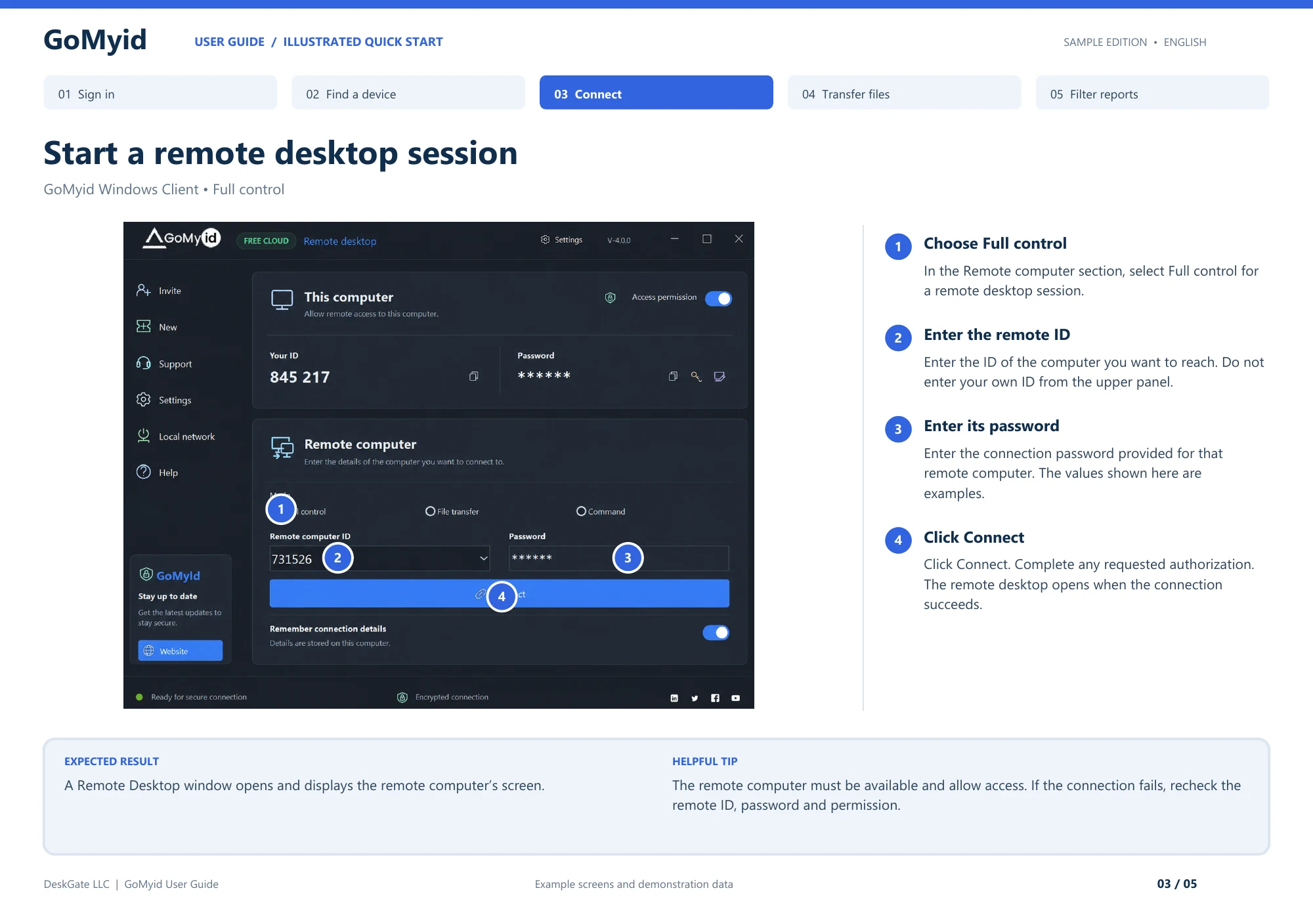
Use this division of work for your first attended connection. The person receiving help confirms the information for their computer. The helper enters that information on the connecting computer. Keeping those roles explicit prevents both people from reading the same labels but meaning different devices.
- Remote user: open GoMyid on the destination and identify its ID and connection password under This computer. Confirm that access is allowed for the agreed session.
- Helper: choose Full control in the Remote computer section of your own client.
- Helper: enter the other computer's ID and connection password, then click Connect.
- Both people: complete the requested authorization and confirm that the Remote Desktop window shows the expected machine.
- Remote user: identify a harmless folder or window so the helper can verify input before changing anything.
You have completed the connection step when the intended remote desktop is visible and both people recognize it. You have completed the support task only after the original problem is checked again. Keep those two outcomes separate in your notes; a working connection is the starting point for support, not evidence that the user's issue has already been solved.
Agree on the task before opening the connection
Start with a short description of the problem. Ask what the person is trying to do, what they expected, and what happened instead. "The invoice will not print from this application" is useful. "The computer is broken" leaves too much open. A specific description helps you choose the right connection mode and recognize when the work is complete.
Confirm that the person requesting help is authorized to use the computer and ask for the support you are about to provide. On a business device, follow the organization's normal support process. If the request arrived unexpectedly, verify it through a contact method you already trust. Do not establish remote access merely because a caller claims to represent a familiar company.
Tell the remote user what they should expect to see. Explain whether you will view the screen, interact with it, transfer a file, or use another tool. Ask them to save open work and close unrelated private material where practical. Make clear how they can ask you to pause. A few sentences of preparation often prevent confusion after the pointer starts moving.
Keep a separate communication channel available during the first attempt. A trusted phone call or existing support conversation lets you coordinate if the screen session does not open. Do not rely entirely on the connection you are still trying to establish. If the user has difficulty finding a field, ask them to read its label rather than guessing which part of the application they are viewing.
Prepare both computers
Use the official GoMyid download page and the applicable setup instructions for each device. If a computer is managed by an employer, use the approved installation process. Avoid introducing a different remote access tool just because it appears in a search result. Consistent software makes it easier for both people to follow the same instructions.
Check that the computers are running and connected. Have the remote person confirm that the application is available and that the computer is not about to restart for another task. If the device is a laptop, make sure power will last through the work. A session that starts successfully can still end when the machine sleeps, loses connectivity, or shuts down.
Prepare a harmless first action. A blank document or a nonprivate folder is enough to show that you have reached the intended desktop. Do not use a sensitive file as your connection test. The first minute should establish identity, input, and communication, not make a consequential change before either person is comfortable.
If you are new to the client, read the Windows connection-screen explanation first. It separates the information about your own computer from the destination fields. That distinction is simple, but it prevents one of the most common reasons a first connection goes to the wrong place or fails entirely.
Identify the remote computer and exchange details carefully
In the GoMyid Windows overview, "This computer" contains the local device's information, while "Remote computer" is where you enter the destination. If you are helping someone else, their computer is your remote destination. Ask them to identify the information in their own client, then enter it in the corresponding destination field on yours.
Read the destination ID back once if you are coordinating by voice. Numbers are easy to transpose, particularly when somebody is stressed or reading from a small display. If you receive details in a message, confirm that the message belongs to the current support request rather than an old session. Do not use a familiar-looking identifier as the only evidence that the destination is correct.
Handle authentication information more carefully than an ordinary device label. Share it only through the agreed private channel and only with the intended helper. Do not place passwords in a screenshot that will be posted publicly or forwarded to an entire department. If your organization's configured workflow uses a different approval method, follow that method rather than inventing a shortcut.
Treat remembered connection details as a separate choice. On a shared computer, leaving access information behind can affect the next person who uses it. Even on your own device, save only what you need and review it when responsibilities change. A one-time support request does not automatically justify continuing access.
Step by step: make the first connection
1. Choose the mode that matches the task
For a visual support task, use the appropriate desktop-control mode available in your configuration. GoMyid's Windows overview labels this Full control and also shows File transfer and Command options. If your task only requires moving an approved file, consider the transfer mode. Avoid selecting a more powerful workflow merely because it is the first option you notice.
Tell the remote user which mode you selected and why. A person who expects only a document transfer may be surprised to see their desktop controlled. Clear expectations also help troubleshooting: if you opened the transfer view, the absence of a desktop image may be normal for that mode rather than a failed connection.
2. Enter the destination and required authentication
Fill in the Remote computer ID and the authentication details required by the approved setup. Check the values before initiating the connection. Use information from the current destination and support request. If something is unclear, pause and confirm it instead of making repeated guesses. A careful first attempt is easier to diagnose than several attempts with changing information.
Keep the other person available while you proceed. Complete any approval steps presented by the application or deployment. The exact behavior can vary with configuration, so follow what your installed version displays. Do not tell someone to approve a prompt they have not understood; explain what action you are requesting and let them make an informed decision.
3. Confirm the desktop before changing anything
When a view opens, check that it belongs to the intended computer. Ask the user to identify a familiar, nonprivate part of the screen, or agree on a harmless action such as opening a folder. If the display is unexpected, stop. A successful connection is not enough if you cannot establish that it is the right destination.
Check which window has input focus before typing. The local desktop may still be visible behind the client, and similar application windows can make the two sides look alike. Use a short harmless input test if necessary. Once both people recognize what is happening, move to the actual support task.
4. Complete one task at a time
Explain a change before making it, especially when it affects settings, files, or application behavior. Ask the user to avoid simultaneous mouse and keyboard input while you perform a precise action, then invite them to try the result. Alternating control deliberately is easier than competing for the pointer and wondering why a menu keeps closing.
If the task expands, say so. Discovering a second issue does not automatically authorize every possible repair. Keep the original result in view and decide together whether the new work belongs in this session. For business support, record additional work through the normal process so it does not disappear into an undocumented connection.
If the task includes transferring a file
Name the file and agree on the destination before starting. In a two-sided transfer view, Local and Remote refer to the two ends of the connection. Verify the selected folders rather than assuming that a familiar-looking path is on the side you expect. If a user says "send it to me," clarify which computer should receive the copy.
Check whether an existing file might be replaced. Use a distinctive name for an approved working copy when appropriate, and read any overwrite prompts. After the transfer, verify that the file appears at the intended destination and opens as expected. A completed operation is useful evidence, but checking the actual result is what tells you the task succeeded.
Remember that transferring creates another copy. A document viewed through a remote desktop may have remained on the original computer until this point. Follow the applicable storage and handling rules for the new destination. Do not leave unnecessary copies on a temporary support device simply because the transfer was convenient.
The Windows file-transfer section explains the layout and common direction mistakes. If the only goal is a transfer, it may be simpler to use that focused workflow rather than navigating the entire remote desktop.
If the connection will not start
Work through the basics in a fixed order. First, reconfirm the remote ID and the intended device. Next, ask the remote user whether the application is available and whether an approval or access setting needs attention. Then check the authentication information through the proper channel. These are different causes, and changing all of them at once makes the result harder to interpret.
Ask the person at the remote location whether the computer is awake and connected. A device may be listed in a remembered directory even when it is not currently reachable. If it has just restarted, allow the normal startup process to finish and verify the application state. Do not assume a stored entry is a live availability check.
Read the actual error text. Note whether it appears before connection, during authentication, or after a remote view briefly opens. That timing narrows the problem. If you need to share a screenshot with support, remove private credentials and unrelated personal information first. Use the product's normal support channel rather than posting a full desktop image publicly.
Avoid broad changes to firewalls, security software, or router settings while guessing. A managed environment may intentionally restrict connections, and the correct next step may be an administrator review. Use current product guidance for network requirements. A failed connection is a reason to diagnose the specific cause, not to remove protections until something works.
If an active session freezes or disconnects
First, establish whether the remote computer itself is responsive. Ask the local user whether they can still use it normally. If they cannot, the issue may be with the computer or application rather than only the remote session. If they can, record what the client displays and whether input, picture updates, or both have stopped.
Do not repeat a potentially consequential click because the screen has not updated. The action may already have reached the remote computer. Use the separate communication channel to confirm the current state before trying again. This is particularly important around file deletion, replacement, configuration changes, and restarting applications.
If a reconnect is needed, repeat the destination and permission checks. Confirm that the first session has ended as expected and that the user is ready for another attempt. After reconnecting, inspect the result of the last action before continuing. Picking up from an assumption about what happened can create a second problem on top of the interruption.
For recurring slowness, use the repeatable performance checks rather than changing settings at random. Keep the task, devices, and network context consistent enough that you can identify an improvement.
Adjust the workflow when using a phone
Mobile access can be convenient for a quick check, but it changes how you interact with a desktop. Small buttons, long file paths, and keyboard shortcuts take more attention. GoMyid's Android overview shows landscape viewing, touch controls, and keyboard shortcuts. Familiarize yourself with those controls before attempting a time-sensitive task.
Choose a simple mobile task first, such as checking a visible application status. Verify that you can read the screen and select the correct control without repeated misclicks. If the work requires substantial typing or a detailed comparison between windows, move to a larger device when possible. The goal is accurate completion, not proving that every task can be done from a phone.
Keep the same identity and permission habits used on a desktop. A smaller screen does not reduce the importance of confirming the destination or reviewing saved access. If the phone is shared or lost, any remembered access can become an operational concern. Follow your normal device-protection and access-removal practices.
End the session with a result the user can verify
Return to the original request and ask the user to perform the task themselves. If the issue was printing, have them print through the normal application. If it was finding a file, have them locate and open it. Watching the user complete the task is a stronger check than simply observing that an error dialog has disappeared.
Explain what changed and what did not. For example, distinguish a corrected application setting from a temporary workaround that still needs follow-up. Avoid telling the user that everything is fixed when you tested only one behavior. In a business setting, record the outcome, any remaining limitation, and who owns the next step.
Disconnect through the client and confirm that the remote user understands the session has ended. Review whether saved details or continuing access should remain. Do not shut down the computer or sign the person out unless that is part of the agreed task. A good support session leaves the user able to continue working and clear about what access remains available.
Frequently asked questions
Do both computers have to be on the same network?
That depends on the remote access product and deployment. Do not assume that a generic instruction for Windows' built-in Remote Desktop applies to GoMyid. Follow the current GoMyid guidance for the environment you use and test the intended connection path. A connection that works between two nearby computers does not, by itself, confirm that your travel or branch-office workflow is ready.
Which computer ID should I enter?
Enter the destination computer's ID in the remote connection area. The information under "This computer" describes the device where that client is running. If you are helping someone else, ask them to confirm their device details and read the destination back before connecting. This simple check prevents many first-session mistakes.
Does someone have to be at the other computer?
For a first support session, having the person present is a practical way to confirm identity, permission, and behavior. Unattended access is a separate configuration decision and should not be assumed from a successful attended session. Review the deployment's supported settings and responsibilities before relying on a computer that nobody can reach physically.
Should I send my Windows password to the helper?
Do not assume your Windows account password is the credential a remote application requires. Follow the product's configured authentication process and share only the information needed through an approved private channel. If a step requires you to sign in locally, the helper can explain the step while you enter your own credential. Avoid exposing unrelated account access during a support request.
What happens if we need to restart?
Save work, explain the interruption, and agree on how the connection will be restored. The computer may need local attention after startup, depending on its configuration. If no one is present, confirm the documented recovery behavior before proceeding. Never make the first remote session your first test of an unattended restart on a computer that matters to ongoing work.
How can I make future sessions easier?
Keep a short internal checklist based on the steps that actually helped: identify the device, agree on the task, connect, verify the result, and review access afterward. For a larger team, read the device-management considerations. For the underlying concepts, use the explanation of attended and unattended access. Build a repeatable process before adding more complexity.
Interface reference: GoMyid User Guide, page 3: Start a remote desktop session. This article uses the documented example interface; it does not report a live deployment test.