Keep Your Remote Access Sessions Secure
Verify remote support requests, choose permissions, review saved access, protect file handoffs, and end sessions with clear ownership and follow-up.
GoMyid ·
Secure remote access starts before a connection opens. Someone needs to know who is asking, which computer they intend to reach, and what work they are authorized to do. It continues after the task is finished, when saved details, copied files, and ongoing permissions still need an owner. A familiar application interface cannot make those decisions for you.
This guide focuses on practical habits for people using GoMyid for support and for teams managing remote access. It explains how to verify a request, choose a suitable scope, handle saved access, and close the loop after a session. Product examples come from GoMyid's documented client and management views. They show available workflows, not a guarantee that every deployment has the same settings or that any software eliminates all risk.
Review page permissions and assigned groups separately
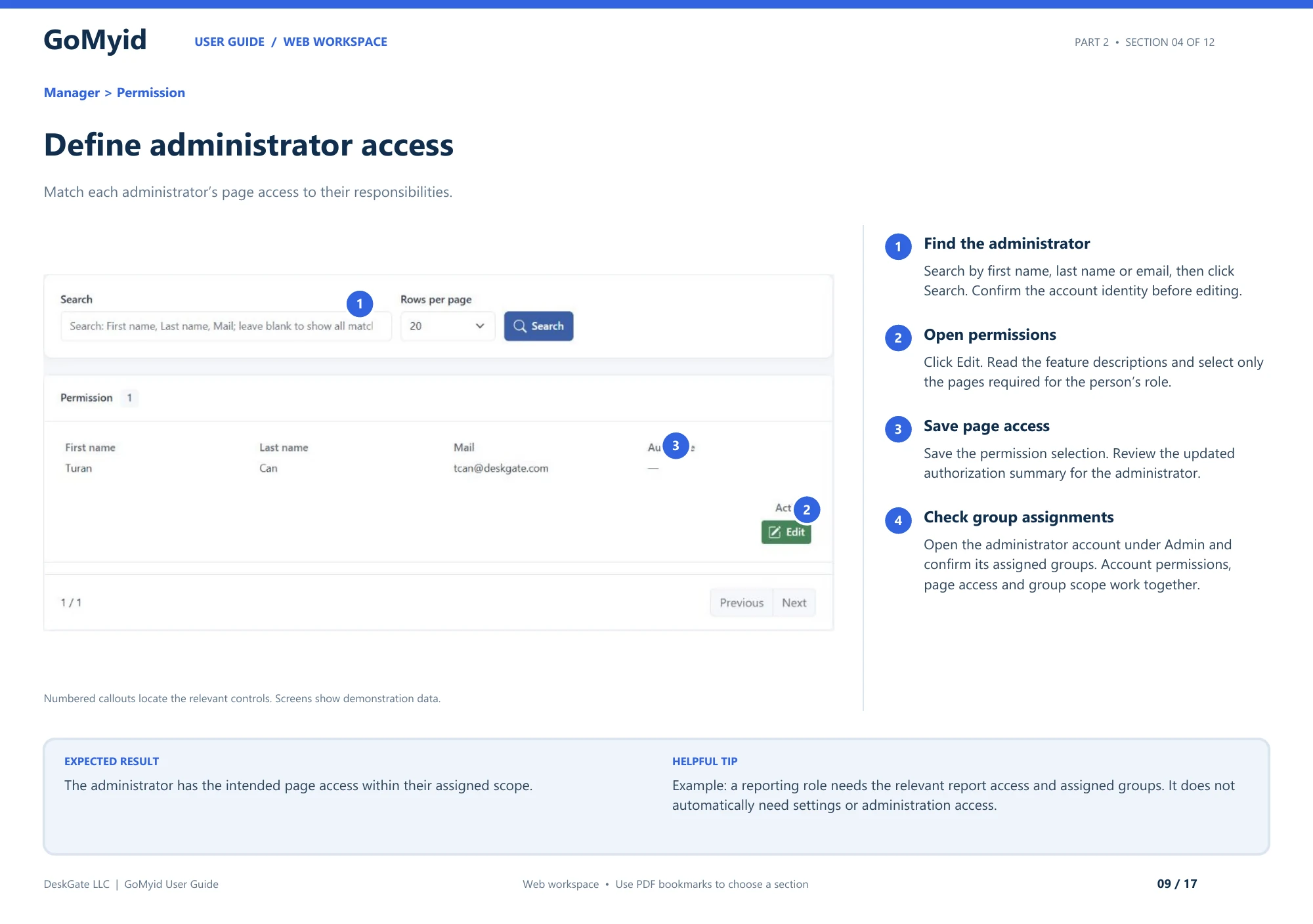
GoMyid's web guide documents page access under Manager > Permission and group assignments under the administrator account. Use both views when reviewing a support role. Changing one does not remove the need to inspect the other.
- Open Manager > Permission.
- Search by first name, last name, or email, then click Search. Match the administrator's identity before editing.
- Click Edit on the intended account and read the feature descriptions. Select the pages required for the role.
- Save and review the updated authorization summary.
- Open the administrator account under Admin and confirm its assigned groups.
For a reporting role, the expected outcome is access to the relevant report pages within the assigned groups. That role does not automatically need settings or administration pages. This is a practical reason to document the job before selecting permissions: you can compare the saved result with an understandable responsibility. When a person changes teams, repeat both the page-access and group checks rather than assuming that updating one field fully changes their effective support scope.
Verify the request before sharing access
Start with the person, not the software. An unexpected caller who knows your name or mentions a familiar company has not necessarily established a legitimate support relationship. Confirm the request through a contact method you already trust, such as your organization's established support channel. Do not use contact details supplied only by the unexpected request as your sole verification.
Ask for the specific task. A legitimate support conversation should make it possible to explain what needs attention and why a remote session is appropriate. "Help me change this application setting" gives both people a boundary. A vague request for unrestricted access makes it harder to distinguish necessary work from unrelated activity.
Take pressure as a reason to slow down. Urgent language, alarming pop-ups, or claims that you must act immediately should not replace verification. If you are unsure, stop and contact the person or organization through the normal channel. A short delay to confirm a request is easier to recover from than granting access to someone whose identity you never established.
Match the access to the work
Different tasks require different capabilities. Viewing a screen, controlling the desktop, transferring a document, and running commands are not equivalent. GoMyid's Windows overview shows Full control, File transfer, and Command modes separately. Use that distinction to discuss what the helper actually needs rather than treating every connection as permission for every action.
Choose the smallest practical scope that completes the agreed task. A document transfer may not require browsing the entire desktop. A training question may be better handled with the user present and participating. If the work expands, explain the new requirement before changing the scope. Access should follow the task, not grow silently because another capability is available.
Use attended support to build a clear first session
Having the remote user present makes a first session easier to verify. They can confirm the computer, identify the expected desktop, explain the problem, and ask you to stop. Their presence also helps you catch a mismatch between what the support request describes and what is happening on the screen.
Explain the first few actions before performing them. Ask the user to save work and close unrelated private material where practical. Establish how you will alternate control so both people are not typing or moving the pointer at once. These steps reduce accidental changes and make the user's participation meaningful rather than ceremonial.
Do not treat a successful attended session as proof that unattended access is ready or appropriate. Continuing access requires its own configuration and ownership decisions. If the person asks to make the computer reachable later, discuss who will connect, for what purpose, and how that arrangement ends. The attended-access explanation covers the distinction.
Keep credentials out of routine communication
Share only the information required by the configured connection workflow, and use the intended private channel. A device label and a credential do not deserve the same handling. Avoid putting authentication details into public screenshots, ticket titles, or broad group messages where people unrelated to the task may see them.
Do not assume that a helper needs your Windows account password simply because they are using a remote application. Follow the product's authentication process. When a local sign-in is required, the user can enter their own credential where appropriate while the helper explains the step. Keep unrelated account information outside the support conversation.
If access information has been shared with the wrong recipient, use the relevant credential and access-management process rather than hoping the message will be ignored. Removing a message does not necessarily undo access already granted. The response should address the capability itself, including any ongoing permissions or remembered details associated with the session.
Review remembered connection details
Remembered details reduce repetitive entry, but they also extend the life of access information beyond the immediate task. GoMyid's Windows client overview includes a remember-details option. Treat it as a deliberate choice about the local device you are using. A personally controlled workstation is different from a borrowed laptop or a shared support terminal.
Ask who can use the local device and what happens when it changes hands. If a technician leaves a team, the review should include saved remote access, not only the management account. If a personal computer is sold or passed to a family member, remembered support connections should not be left behind as an invisible convenience.
Make reviews event-driven as well as periodic. A role change, device replacement, lost phone, or completed temporary assignment is a natural point to revisit access. The goal is to keep current responsibilities and available connections aligned. An old entry is not harmless simply because nobody has used it recently.
Organize managed access around named responsibilities
For a support team, use the administrator and group controls provided by the deployment to reflect real responsibilities. The GoMyid management overview includes administrator profiles, active status, capability settings, and group assignments. Those controls are most useful when someone owns their maintenance and understands why each assignment exists.
Avoid shared responsibility that means no responsibility. If everyone can change access but nobody reviews it, permissions can accumulate after temporary needs disappear. Assign an owner for approving new access and another clear step for removing it when work changes. The process can be simple, but it should be repeatable.
Review a technician's reachable devices and available actions together. A narrow group assignment with unnecessarily broad capabilities may still exceed the role. Conversely, appropriate tools are not enough if the operator can reach unrelated locations. Verify the effective workflow with an authorized, limited check rather than relying solely on how a settings page appears.
Keep device identity reliable
A remote ID or device name helps identify a destination, but the surrounding context matters. Computers can be reassigned, replaced, or moved between locations. A saved entry called Front Desk may refer to a different situation than it did last month. Confirm the current owner or location when a support request arrives.
In a managed directory, use consistent names and group assignments that people understand. Avoid relying on private nicknames known only to one technician. When a device is retired or reassigned, update the record through the normal process. Stale identity information can lead to mistaken access even when authentication and permissions are functioning as configured.
For each connection, verify enough context to know that the destination is the one intended by the request. A harmless visual check with the user is often useful for attended support. For organizational practices, see the device-directory guidance. Good identity records make careful access easier rather than adding unnecessary friction.
Keep unrelated information out of the session
Before support begins, ask the user to close unrelated private documents where practical. Explain which application or setting you need to inspect. If the session reveals information outside the task, do not browse it simply because it is visible. Stay within the agreed purpose and ask before expanding the work.
Be equally careful on the helper's side. A remote session displayed on a large shared monitor may expose information to bystanders. A phone used in a public place introduces another visibility concern. Choose a setting appropriate to the information involved. The fact that you can connect from anywhere does not mean every location is suitable for every task.
When documenting a problem, capture only the material needed to explain it. A cropped application error may be more appropriate than a full desktop containing names and open documents. Use the intended support record and audience. Detailed evidence is useful when it is relevant; collecting unrelated content does not improve the quality of a diagnosis.
Treat file transfer and commands as consequential actions
A transferred file can remain on the receiving device after the connection ends. Confirm the destination and the reason for the copy before starting. If the work only requires viewing a value, a transfer may be unnecessary. If a copy is required, decide who owns it and where it should be retained. The file cleanup guide covers that ending.
Command access also deserves a clear purpose. A command can change services, files, or connectivity without the visual feedback of an ordinary desktop workflow. Confirm the target, understand the command, and review its arguments before execution. Do not paste unfamiliar instructions from a message just because they claim to repair a problem quickly.
Plan for actions that could interrupt access. A restart or network change may require local help to recover. Agree on the interruption before acting, save relevant work, and verify the resulting state afterward. The ability to submit an operation is not proof that the operation was appropriate or that it achieved the desired result.
Use records to answer real operational questions
Connection and administrative records can help a team understand who accessed which device and what happened around a support task. GoMyid's broader management overview includes connection, login, and administrative audit views. Availability and detail depend on the deployment and configuration, so confirm what your environment actually records before relying on it.
Define the questions the records need to answer. A support manager may need to relate a session to a request, while an administrator may need to review a permission change. Keep the record's scope and time context clear. A count of connections alone does not explain whether the intended task was completed or whether access was appropriate.
Restrict access to operational records according to responsibility. Logs can contain device and user information that should not be shared casually. When investigating a problem, use the relevant period and destination rather than exporting everything by default. Useful review depends on focused evidence and a person responsible for interpreting it.
What to do when a session seems wrong
If the destination, helper, or requested action is unexpected, stop the work and verify the situation through a trusted channel. Do not continue simply because a session is already open. Explain that you need to confirm the request. If necessary, use the supported way to end the connection and involve the appropriate owner of the device.
For a company computer, follow the organization's incident or support process. Preserve relevant details such as the time, request, and observed action without conducting an improvised investigation across unrelated files. The right next step depends on what happened and who is responsible for the environment. Avoid making broad changes that erase useful context or disrupt other work without coordination.
Review ongoing access after the immediate session is addressed. Ending the visible connection may not remove saved credentials, group assignments, or other continuing permissions. Confirm the intended final state through the appropriate administrative process. The important outcome is that the uncertainty is resolved, not merely that the remote window has disappeared.
End both the task and the access arrangement
Start by confirming the task's result with the user. Explain what changed, what remains unresolved, and whether a follow-up is needed. Then disconnect through the client. Avoid shutting down or signing out of the computer unless that is part of the agreed work, since other tasks may still be open.
Review whether future access is supposed to remain. A recurring managed-support relationship and a one-time personal session have different expectations. Remove unnecessary remembered details or continuing permissions through the appropriate controls. Keep that decision explicit rather than assuming the next person will understand why access is still available.
Finish the support record with a concise outcome. Include any ongoing access arrangement and its owner where relevant. That gives the next technician or administrator a clear starting point. A clean ending protects the user's work and prevents a temporary connection from becoming an undocumented long-term relationship.
Build a review routine people can maintain
A useful review does not need to be elaborate. Check whether administrators still need their assigned scope, whether retired devices remain listed, and whether temporary access has an end. Connect the review to ordinary events such as onboarding, role changes, and device replacement so it becomes part of operations rather than a separate project nobody remembers.
Ask users whether the support process is understandable. Can they identify the legitimate contact channel, recognize a connection request, and stop a session when needed? If not, improve the short instructions they receive. Technical controls work better when people understand the expected workflow and can notice a departure from it.
Keep product claims and operating evidence separate. A security setting or product illustration is not a certification or proof of how your environment is configured. Review the actual deployment and use the available records appropriately. For choosing the surrounding platform, read the permissions evaluation checklist.
Set an ending for temporary support
Temporary help deserves a clear end date or completion condition. A contractor assisting with a specific application issue may need access during the investigation, but that does not automatically justify the same access after the issue is closed. Record who owns the arrangement and who will verify its removal. Make the review part of closing the task rather than an optional reminder.
If the work takes longer than expected, review the extension explicitly. Confirm that the same devices and capabilities are still needed and that the responsible contact remains available. This keeps a temporary arrangement from becoming a permanent exception through inattention. When the work ends, check both the administrative access and any remembered details on support devices through the appropriate process.
Frequently asked questions
Does using a familiar remote desktop app make a request safe?
No. The application and the person requesting access are separate parts of the situation. Verify the request through a trusted channel, agree on the task, and use the appropriate access scope. A recognizable interface does not establish the caller's identity or give them permission to inspect unrelated information.
Should I always stay at the computer during support?
For a first or one-time support session, being present can make identity, permission, and task verification easier. Unattended access may be appropriate in a managed arrangement, but it requires its own configuration and ownership decisions. Do not infer that arrangement from a successful attended connection or a saved device entry.
Is remembering connection information always a bad idea?
Not necessarily. It can be useful on a trusted device within a clearly owned workflow. The important questions are who can use the device, why the access remains, and how it is removed when circumstances change. Shared or borrowed computers deserve particular caution because the next user may inherit convenience intended for someone else.
Does remote support mean someone can monitor everything?
Do not assume that every capability is present or authorized simply because a product has a broad management offering. Review the actual deployment, permissions, and agreed purpose. Remote support, ongoing access, and other management functions are distinct decisions. Users should understand the arrangement that applies to their device rather than guessing from a product name.
Do these practices also apply on Android?
Yes. Verify the destination and request, use the intended scope, and review saved access afterward. A mobile device adds practical concerns such as screen visibility in public and the possibility of loss or reassignment. See the mobile privacy section for those everyday considerations.
What is the most useful first improvement for a small team?
Make access ownership explicit. Know who approves a connection, which devices each operator supports, and who removes access when the assignment ends. Then document the short user-facing process for a legitimate support request. The small-business role guide connects those decisions to daily operations.
Interface reference: GoMyid User Guide, page 9: Define administrator access. This article uses the documented example interface; it does not report a live deployment test.