Choosing the Right Remote Desktop Software for Your Work
Compare remote access workflows, free-use terms, permissions, and device management with a practical checklist for choosing remote desktop software.
GoMyid ·
Choosing remote desktop software is easier when you start with a real task. Helping your parents with a printer, reaching your own office computer, and supporting forty employees are all forms of remote access, but they call for different decisions. A long feature list cannot tell you whether the person receiving help will understand the first screen or whether your team can remove access cleanly when somebody leaves.
This guide gives you a practical way to evaluate remote access software without building a spreadsheet full of features you will never use. It covers free use, desktop and mobile workflows, permissions, connection quality, and the point at which device management becomes important. GoMyid is the product used for examples. The evaluation questions are intended to help you choose a workable setup, not to declare a universal winner for every situation.
Evaluate GoMyid groups with a concrete task
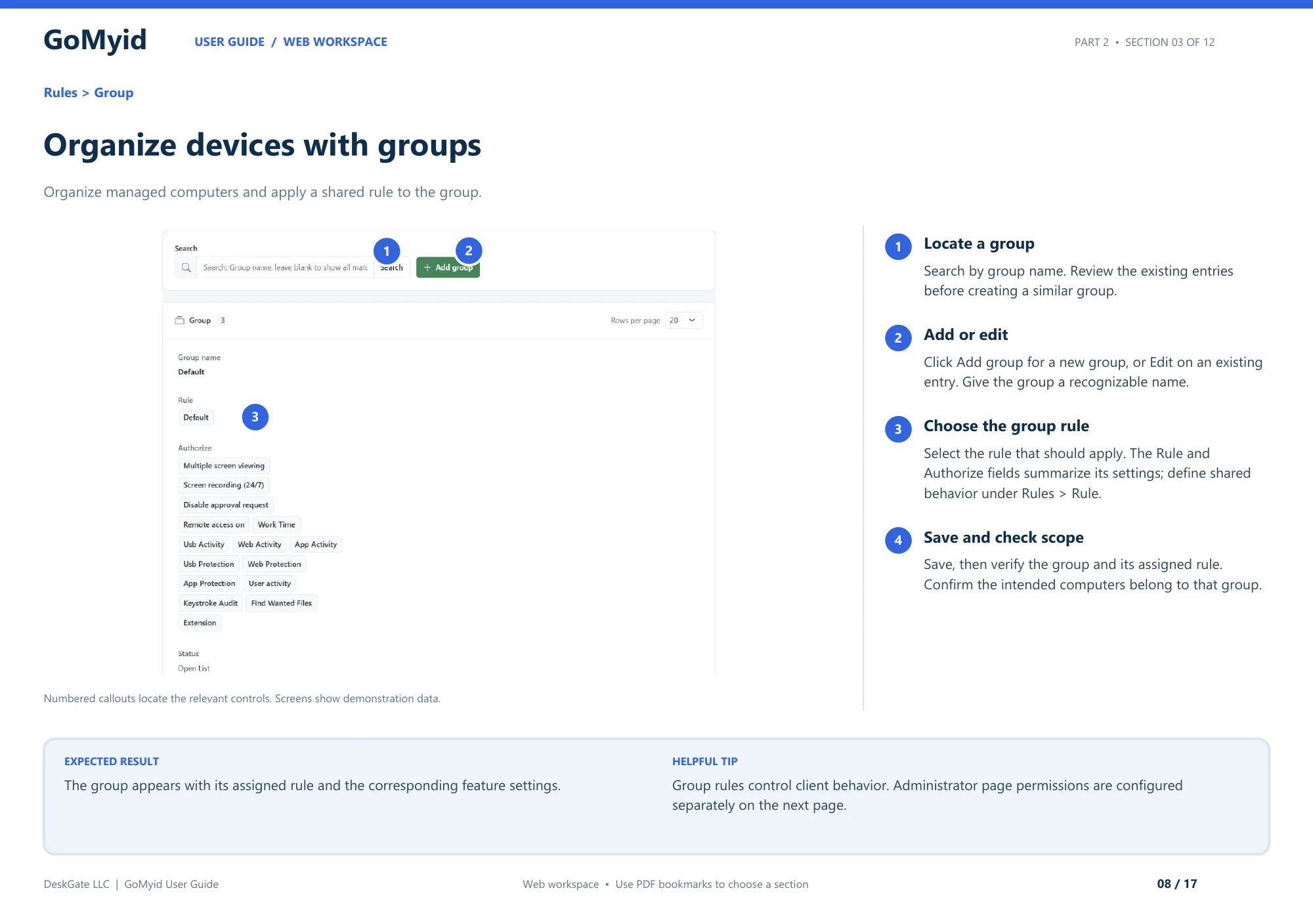
For a business evaluation, ask the operator to find an existing group and explain which rule applies to it. This gives you a more useful result than asking whether the product has a checkbox called device management.
- Open Rules > Group and search for the intended group before creating another entry.
- Read the group's Rule and Authorize summary. These describe the selected shared client behavior.
- If a change is part of the approved pilot, use Edit, choose the intended rule, and save. Use Add group only when a new group is actually needed.
- Recheck the saved group and verify that the intended computers belong to it.
- Review administrator page access separately under Manager > Permission; do not use a group rule as a substitute for that review.
A successful evaluation leaves the operator able to explain both the device policy and the administrator's scope. Those are different results. A group can have the right rule while the wrong person still has access to its management pages. Record whether both responsibilities were understood, and use that evidence when comparing the managed workflow with a simpler one-to-one connection.
Start with the work you actually need to do
List three tasks you expect to complete regularly. Be concrete: "help an employee find a downloaded invoice," "transfer an approved configuration file," or "check a workstation at another branch." Then note who will be at each end of the connection. A technically confident administrator and a first-time user need different explanations even when they use the same software.
For each task, write down what completion looks like. The invoice opens, the transferred file is in the correct folder, or the workstation passes a particular check. That gives you a repeatable way to compare an actual session with your expectations. It also stops a smooth-looking demonstration from overshadowing a missing capability that matters to your daily work.
Include the uncomfortable situations in your list. What happens if the remote person cannot find the device ID? What if the session ends unexpectedly? What if the person helping them is absent the next day? Remote access software becomes part of a human process. The strongest fit is the one that makes your normal work and your predictable exceptions manageable.
Know which kind of product you are evaluating
An interactive remote desktop app focuses on showing and controlling another computer. A broader remote access platform may include file transfer, command tools, device organization, or administration. A management deployment can add responsibilities such as assigning operators to groups and reviewing access. The categories overlap, but they are not interchangeable.
Check which edition, configuration, or service arrangement provides each capability you need. Product screenshots often demonstrate a broad range of functions. They should help you recognize an interface, not substitute for confirming availability. Read the current GoMyid feature descriptions and pricing information alongside the task list you created.
What should you check in free remote desktop software?
"Free" answers a price question, but it does not answer every usage question. Look separately at session duration, permitted use, device counts, simultaneous connections, and management functions. A product can be free for one workflow while charging for another. A clear explanation of those boundaries is more useful than a large zero on a pricing card.
GoMyid presents its remote access offering as free to use without a session time limit. That is relevant if you want to finish a support task without watching a countdown. It should not be interpreted as a promise that every managed-service feature, deployment option, or future offering has identical terms. Check the current product and pricing pages before making a purchasing or rollout decision for a business.
Also separate a time limit from a technical interruption. A session can disconnect because a computer restarts, a network changes, or the application becomes unavailable even when there is no commercial session timer. Test the conditions that matter to you. If a support visit typically includes an application restart, make that part of your evaluation instead of treating an uninterrupted idle session as sufficient evidence.
Avoid measuring value only by subscription price. Setup time, repeated explanations, unclear access ownership, and manual cleanup all have costs. A free tool that fits a simple task can be an excellent choice. A larger deployment may justify additional management capabilities because they reduce operational confusion. The right comparison is the full workflow your people will use.
Evaluate the first five minutes
Ask someone who has not seen the application to walk through the connection process with you. Watch where they hesitate. Can they tell which information describes their computer and which fields describe the remote computer? Do they understand what they are sharing? Can they recognize when a session is active and how to stop it?
The GoMyid Windows screen separates "This computer" from "Remote computer." The overview shows the remote ID, password, mode selection, and Connect control together. During an evaluation, have each person explain those fields in their own words. If they accidentally read their own ID as the target, you have found a training issue before it turns into a stressful support call.
Keep the first task harmless. Open a folder, move a window, and type a short sentence into a document that contains no private information. Observe whether both people can follow what is happening. A successful handshake is not the same as a comfortable support experience. You are checking whether the session is understandable enough to use under ordinary pressure.
Look at permissions as part of usability
Permissions are often discussed only as a security checklist. They also affect how easily people work. If a technician has more access than necessary, the remote user may be uncomfortable. If the technician lacks the access needed for the agreed task, both people may waste time discovering that limitation halfway through the session.
Match permissions to the job. Viewing a screen, interacting with it, transferring a file, and running a command have different consequences. GoMyid's separate connection modes provide a visible starting point for that conversation. For managed environments, review the actual administrator and group controls in your deployment. Do not assume that a setting shown on one account applies to every operator.
Test removal as carefully as assignment. It should be clear who can revoke access and how you verify the result. A business evaluation should include a realistic handoff: one administrator stops supporting a group, and another takes responsibility. If nobody can explain how the old access ends, the rollout plan needs more work before additional devices are enrolled.
Check desktop and mobile workflows separately
A remote desktop app can look good on a laptop and still feel awkward on a phone. Small targets, long paths, and keyboard shortcuts all change the experience. If mobile access matters, evaluate a complete task on the device you will actually carry. Reading a status screen and editing a complicated spreadsheet are very different tests.
GoMyid's Android product view shows landscape orientation, touch controls, keyboard shortcuts, and a hub for remote devices. Those are useful capabilities to inspect, but they do not eliminate the physical limits of a small screen. Decide which tasks belong on mobile and which should wait until you have a larger display and a full keyboard.
Check the receiving side as well as the connecting side. "Works on Android" can describe several different relationships between devices, so do not infer a particular direction of control from a platform badge alone. Use the documented workflow for your intended connection. Our remote access overview explains the roles of local and remote devices before you begin.
Test performance with representative work
Use the same task sequence for each evaluation session. Open the application you normally support, navigate a few ordinary screens, and enter a short amount of text. Record the network conditions and devices involved. Without that context, a claim that one session "felt faster" is hard to interpret or reproduce.
Include a session over the connection you expect to use away from the office. A wired desk connection may not reveal the problems that appear on a busy home wireless network. If your team supports branch locations, involve one representative branch rather than assuming every office has the same network quality. You are looking for practical limits and useful adjustments, not a dramatic benchmark number.
Observe both responsiveness and readability. Text that becomes too blurry to interpret can cancel out an improvement in pointer movement. If quality controls are available, check whether a technician can adjust them without losing the remote user's place. Never describe a product as the fastest based on an informal test. Record what happened in your environment and use that evidence to guide your own choice.
Treat file transfer as its own evaluation
Create a harmless file with a recognizable name and transfer it to an agreed folder. Before starting, have both people identify the source and destination. Then confirm that the file arrived where expected and opens correctly. This small exercise catches a surprisingly common source of mistakes: local and remote folders being interpreted from opposite viewpoints.
Check what happens when a destination already contains a file with the same name. Do not experiment with important documents. Read the prompts carefully and establish how your team will handle replacement, renaming, and version checks. A successful transfer is not proof that the recipient has the correct version or permission to keep the file.
GoMyid's overview shows separate Local and Remote areas in its transfer view. That layout can help explain direction, but people still need to verify the selected paths. For routine support, define a standard destination and cleanup process. If you rarely transfer files, do not let a large transfer feature list dominate your decision over the desktop tasks you perform every day.
When does device management become important?
At first, you may recognize every device by name. As the environment grows, names alone become less reliable. Two offices can have similarly named workstations, employees can change machines, and support responsibilities can move between teams. A managed directory helps only when its grouping and identity information are kept useful.
Look for a way to find the intended station, confirm its context, and restrict the operator to the correct scope. GoMyid's management overview shows device groups, station details, and administrator permissions. Evaluate those functions with a small authorized group before using them broadly. An attractive directory is not enough if the team cannot tell which records belong to the branch they support.
Define ownership before enrollment. Someone should be responsible for group names, access reviews, and removing obsolete devices. The product can provide controls, but it cannot decide your organization's responsibilities for you. For a distributed business, GoMyid's management workspace is the relevant starting point for discussing that operating model.
Cloud and self-hosted choices need different planning
A cloud-based arrangement and a self-hosted deployment can offer different operating responsibilities. With self-hosting, your organization takes on infrastructure tasks that may include server maintenance, certificates, backups, availability, and monitoring. Evaluate whether those responsibilities fit your team rather than assuming that local ownership automatically makes the overall system simpler.
Write down who handles outages and updates. Ask how the application is restored if a server fails and how endpoint access is validated after a change. Those questions matter even if a small pilot runs perfectly. The pilot demonstrates one operating state; a deployment plan explains how you maintain that state over time.
GoMyid provides a self-hosted information page. Use the current installation guidance for technical requirements instead of copying a generic remote desktop configuration. For this evaluation, the key decision is organizational: whether you want the responsibility of running the infrastructure and have the people and processes to support it.
A practical evaluation checklist
Start with two people and two authorized computers. Agree on a short support task, establish a connection, and ask the remote person to explain what they see. Confirm that the operator reaches the intended device and can complete the task without unrelated access. Note any instructions that had to be repeated; those are candidates for a short internal guide.
Next, test the features you actually need: a document transfer, a mobile check, or finding a station through the managed directory. Keep a separate result for each. A strong desktop experience should not hide a transfer workflow that your team finds confusing. Likewise, a feature you do not need should not become a reason to reject an otherwise suitable setup.
Then test the end of the relationship. Disconnect, remove unnecessary saved details, and confirm the intended future access state. In a company pilot, change an operator's assigned scope and verify that it matches the new responsibility. Include the person who will administer the system, not just the technician who enjoys using the remote screen.
Finally, summarize the decision in plain language. Record the tasks that worked, the conditions under which you tested them, any limitations, and the person responsible for follow-up. That summary is more useful than a score based on dozens of unchecked boxes. It becomes the basis for training, rollout, and later review when your needs change.
Turn the evaluation into a usable rollout note
Before expanding beyond a pilot, write a short guide for the people who will receive support. Explain where to get the approved application, which details a legitimate helper may request, and how to end a session. Use the labels from the version your team actually deploys. A screenshot is helpful when it removes a real point of confusion; it does not need to show every menu.
Give administrators a separate note covering device ownership, access removal, and the person to contact when a connection fails. Keep that note current when responsibilities change. A successful evaluation should leave you with a process other people can repeat, not just one technician who remembers what worked. Revisit the process when you add a new location, change the supported device mix, or introduce a different management arrangement.
Frequently asked questions
What is the best remote desktop software that is free?
The best fit depends on your tasks, devices, access requirements, and usage terms. Start with a short list of necessary workflows and test them under realistic conditions. For GoMyid, review the free remote access offering and confirm the current boundaries of any management or deployment features you need. A product should earn its place through a successful task, not a generic ranking that ignores your circumstances.
Is a remote desktop app different from remote desktop software?
In everyday conversation, the terms often refer to the same category. "App" may emphasize the program installed on a computer or phone, while "software" may refer to a wider product. Look at the actual components required on each device. Confirm whether the workflow needs a client, a managed endpoint, an account, or a particular deployment configuration before planning setup.
Can a small business use a free remote access tool?
That depends on the product's current terms and the business's operational requirements. Confirm permitted use directly and consider who will administer access, handle support, and review devices. Free access can be useful for a simple workflow, but it does not remove the need for clear ownership. If centralized management is important, evaluate that requirement separately from the cost of an individual connection.
Does no time limit mean the connection can never drop?
No. A commercial session limit and a technical disconnection are different things. Networks, device power, restarts, and application availability still affect an active session. Plan for interruptions and test the recovery procedure you expect to use. A product without a session countdown can still require the remote computer to remain available and properly configured throughout the work.
How much testing is enough before choosing?
For personal use, a complete first task and a clear understanding of how to disconnect may be enough to begin. For a business, include representative devices, users, networks, and access-removal scenarios. Match the effort to the consequences of a failure. The goal is to resolve important uncertainties, not to keep testing indefinitely after you have reliable evidence for the intended workflow.
What should I do after selecting GoMyid?
Use the Windows preparation checklist, then follow the first-connection walkthrough with the other person available. If you are still sorting out terminology, return to the remote desktop explanation. Keep the first session small enough that both people understand the result and how access ends.
Interface reference: GoMyid User Guide, pages 8–9: Groups and administrator permissions. This article uses the documented example interface; it does not report a live deployment test.