What Is Remote Desktop and How Does It Work?
Understand remote desktop, remote access, and connection modes. Learn how to prepare a session, choose the right workflow, and use GoMyid responsibly.
GoMyid ·
Remote desktop puts another computer's screen in front of you and lets you work with it from somewhere else. The applications still run on that other computer. Your local device displays the session and sends your mouse, keyboard, or touch input back. That simple arrangement can save a trip across town, help a family member finish a task, or let a support technician investigate a problem while the person experiencing it is still available.
The useful question is not just whether a connection works. It is whether you can identify the right computer, get appropriate permission, complete the work, and leave access in the right state afterward. This guide explains those decisions without assuming that you manage a network for a living. It also shows where GoMyid's Windows client, Android application, and managed-device tools fit into the process.
Find a managed computer in GoMyid
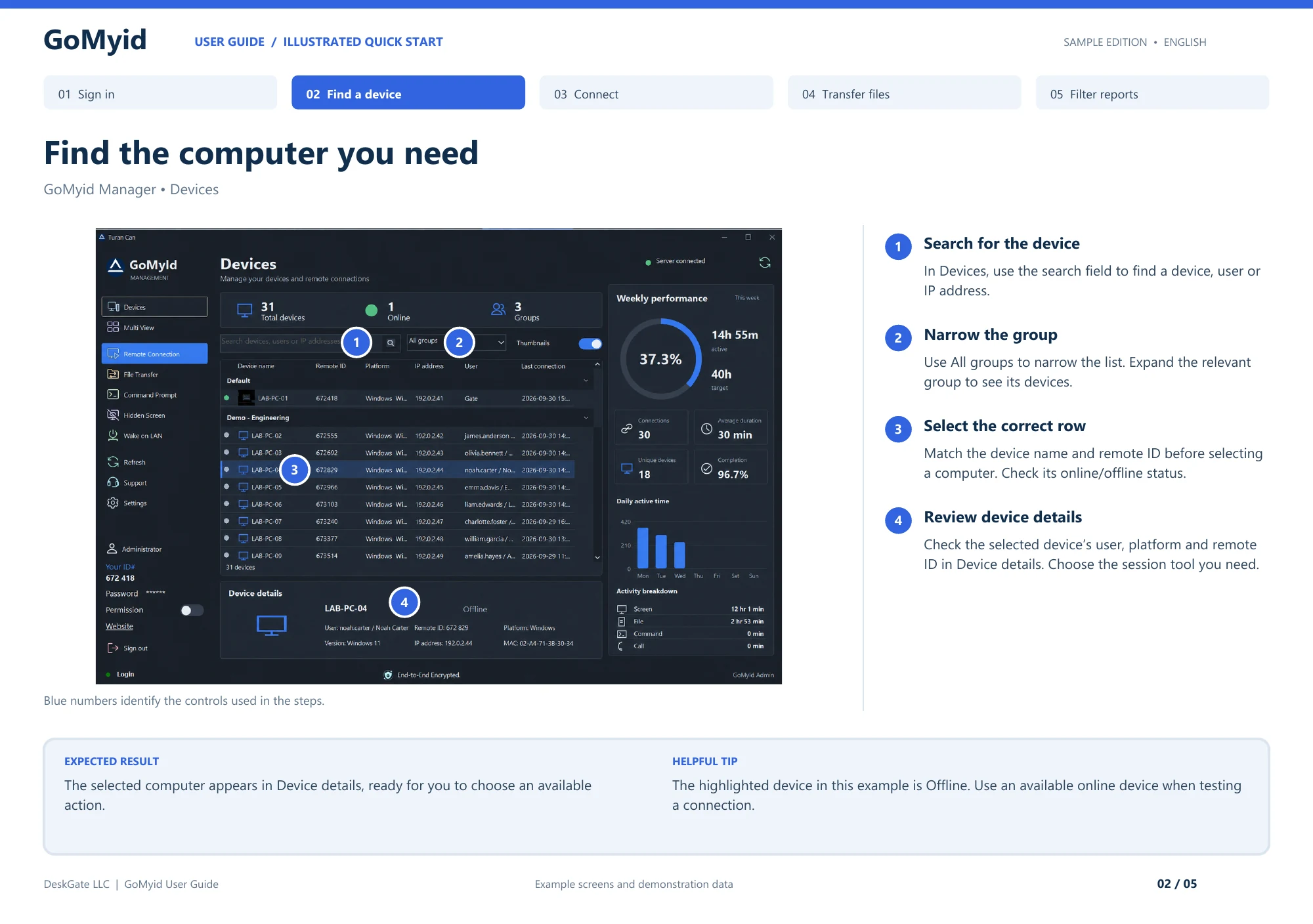
The Manager device list turns a general idea of remote access into a specific destination. Use this sequence when your organization has supplied a managed-device workspace; the standalone Windows connection fields are covered separately below.
- Open Devices and search for the device, user, or IP address associated with the support request.
- Use All groups to narrow the list, then expand the relevant group.
- Match the device name and remote ID on the row. Check its online or offline status before selecting a session tool.
- Read Device details: confirm the user, platform, and remote ID against the request.
- Choose the available session action that matches the task, rather than treating selection of a row as a connection.
The expected result at this stage is a correctly identified computer in Device details. It is not yet proof that a remote session has opened. The illustrated guide deliberately shows a selected offline computer. That is a useful distinction: a device can exist in the directory while being unavailable for the work you want to perform. If the record is correct but the machine is offline, resolve availability before changing credentials or permissions.
What is remote desktop?
Imagine that a spreadsheet is open on your office computer while you are working from home. With a remote desktop session, you can view that computer and interact with the spreadsheet there. You are not automatically downloading the entire spreadsheet or installing its business application on your home laptop. The session gives you a way to operate the remote environment, subject to the access and permissions that have been configured.
There are two sides to keep straight. The local device is the one in your hands. The remote device is the one you are connecting to. Some documentation calls the remote side the host and the connecting side the client. Those names describe roles, not necessarily separate product editions. When discussing a problem with someone else, say which computer you mean. "Close the window on the office computer" is much clearer than "close it over there."
The remote computer usually needs to be running, connected, and ready to accept the authorized session. A desktop that is shut down does not become available simply because an app remembers its name. Features for waking a computer, restarting it, or reconnecting after a restart have their own requirements. Check those requirements before relying on access while you are away. A successful connection while sitting beside the machine is only the first part of that check.
How does remote access differ from remote desktop?
Remote access is the wider category. It can mean reaching a file, using a business application, running an approved command, or working with an entire desktop. Remote desktop is the visual, interactive form most people recognize: you see the other screen and use it. This distinction matters because the full desktop is not always the best tool for the job.
If all you need is one document, a permitted file-transfer workflow may be more direct than opening folders through a screen session. If an experienced technician needs to inspect a setting through a command, a dedicated command tool may avoid unnecessary desktop interaction. Those capabilities also create different responsibilities. A file copied to your laptop becomes a separate copy to protect. A command can make a change that is harder for the remote user to observe.
GoMyid's Windows interface separates Full control, File transfer, and Command modes. That is a useful reminder to choose the scope of the task before you connect. A person who needs help finding a printer setting may want to watch a screen session. Someone sending an approved document may need only file transfer. The tool should follow the purpose of the connection, rather than turning every request into unrestricted access.
When is a remote desktop connection useful?
Everyday support is a common starting point. A relative can describe a problem over the phone, but seeing the exact dialog often resolves misunderstandings faster. With permission, you can look at the same screen, explain what you are changing, and let the person try the task again before ending the call. The value comes from shared context, not from taking over without explanation.
Small businesses use remote sessions to help employees who work in different locations. A technician may need to check a workstation at a branch office, confirm an application setting, or help a new employee complete setup. Organizing devices and limiting who can reach them becomes increasingly important as the number of computers grows. An informal list of access details that worked for two machines can become confusing when several people share support responsibilities.
Personal access is another use case. You might need a file or application on a computer you own while traveling. Plan that access ahead of time and test it under the conditions you expect to use. A hotel connection, a phone screen, and a desktop monitor offer different experiences. Consider whether the task truly requires remote control or whether an approved file-sharing or application workflow would be simpler.
Remote desktop is less suitable when a task depends on physically handling the computer. Replacing a cable, diagnosing a failed power supply, and reading a label behind a desk still require someone on site. Even software work can reach that boundary. If an action interrupts the network connection, you may need a local person to restore it. Agree on that possibility before beginning disruptive troubleshooting.
What happens during a session?
A typical session starts with identifying the target computer. Depending on the product and deployment, that might involve a device ID, a managed-device directory, or another connection address. Identification and authorization are different steps. Knowing which computer to contact does not, by itself, establish permission to use it. Keep credentials and approval steps separate from ordinary device labels in your own notes.
After the connection is authorized, the remote side supplies the visual information needed to display the desktop, and your device sends interaction back. Changes in network conditions and computer workload affect the experience. A delayed cursor does not necessarily mean that your mouse is broken. The delay may occur while input travels to the remote device, while that device responds, or while the updated display returns.
The session also has an ending. Closing a viewer, signing out of the remote operating system, and disabling future remote access are different actions. Choose the one that matches the work you completed. For a support visit, you might end the connection and ask the user to confirm that control has returned. For a shared office machine, your organization may also require a sign-out or another access review.
Attended and unattended access: what changes?
In attended support, a person is present at the remote computer. That person can confirm the device, approve the work, describe symptoms, and stop the session when necessary. This is often the clearest arrangement for a first connection. It gives both people an immediate way to check that they are looking at the right environment and working on the agreed problem.
Unattended access means a connection may be possible without someone sitting at the remote keyboard. It requires a more deliberate setup and a clear reason for keeping access available. Do not assume that a successful attended connection automatically proves unattended access is configured. Product settings, credentials, services, power behavior, and organizational rules can all affect what happens after the user leaves.
For company devices, decide who owns approval, how access is removed, and how exceptions are handled. A technician changing teams should not retain access simply because nobody remembered an old device assignment. For personal devices, review saved credentials on computers you no longer use. Convenience is helpful only while the person and device holding that convenience remain trusted.
Where GoMyid fits into the workflow
GoMyid's Windows client presents information for "This computer" separately from the fields used to reach a "Remote computer." The product overview shows a local ID, an access-permission control, and a remote connection area with an ID, password, mode selection, and Connect button. Seeing those areas separately helps prevent a common beginner mistake: entering your own ID when you intended to reach somebody else's computer.
For managed environments, the GoMyid Manager view shows device groups and status information. The wider management workspace includes administrator permissions and station records. Those capabilities belong to a broader deployment decision than a one-time personal connection. Review the product features and current offering when deciding which management functions your organization needs. Do not assume that every screen in a product overview is included in every usage arrangement.
Choose the workflow before choosing settings
Write down the result you need in one sentence. "Help an employee print a document" is specific enough to guide a session. "Get access to everything" is not. A clear result helps you choose the smallest practical set of permissions and recognize when the work is finished. It also makes it easier to explain the request to the person at the other end.
Next, decide whether the user needs to stay involved. A training question benefits from having the person watch, repeat the steps, and ask questions. An approved maintenance task may need a different schedule and access arrangement. Do not confuse the ability to complete a task quietly with permission to do so. Technical capability should support the agreement between the people involved.
Finally, identify your fallback. If a screen stops updating, can you call the user? If an application needs a restart, can they save their work first? If the computer goes offline, who can check it? These are ordinary support questions, not signs that remote access is unreliable. Planning for them prevents a small interruption from becoming a much longer recovery exercise.
What affects speed and picture quality?
Internet speed is only part of the experience. Network delay, connection stability, available upload capacity, display size, and the work being done on both computers can matter. A connection that feels fine for reading a settings page may behave differently while a video plays. Avoid judging an entire product from a single session on an unstable wireless connection.
Start with a task you can repeat. Open a folder, move a window, and type a short sentence into a harmless document. Then change one condition at a time if the session feels slow. Try a more stable network connection or an appropriate display-quality setting if the client provides one. Changing several settings at once makes it difficult to tell which adjustment helped.
Keep usability in view. Lowering picture quality may improve responsiveness, but it is a poor trade if you cannot read a serial number or an error message. For detailed work, a larger local screen may solve more problems than repeated network adjustments. Our Windows display and input guide explains how to evaluate those choices during a practical session.
Practical habits for safer remote access
Start by verifying who asked for the connection. An unexpected phone call, alarming pop-up, or urgent message should not be treated as proof that someone is your support provider. Use a contact method you already trust to confirm the request. A remote access tool can be used legitimately, but the presence of a familiar interface does not establish the identity or intentions of the person asking you to connect.
Share access details only with the intended person, through an appropriate channel. Avoid placing credentials in public screenshots, broad group chats, or routine ticket titles. Before a support session, close personal documents and unrelated applications where practical. Tell the technician if there is information that should not be opened. These habits make the boundaries of the work visible to both sides.
At the end, review what remains available. Remove saved connection details from shared devices when they are no longer needed, and follow your organization's process for removing continuing access. For a company rollout, use named administrators and appropriately scoped permissions where the deployment supports them. No single setting replaces the need to know who can reach a computer and why.
A useful first-session checklist
Confirm the destination with the person who owns or uses it. Check that the remote computer is powered on and that the application is ready. Establish the connection through the intended mode, and make the first action easy to recognize: open a harmless folder or point to a familiar area of the desktop. Avoid beginning with a destructive change or a restart.
Keep the session focused on the agreed task. If you discover a second issue, explain it before expanding the work. Save relevant work before changing application settings. When files need to move, confirm the direction and destination first. The words "send" and "receive" can be confusing when two people are describing opposite ends of the same connection.
Finish by asking the user to repeat the original task. A technician seeing an error disappear is useful evidence, but the user's successful attempt is often the better completion check. Record what changed in ordinary language if this is a business support request. Then end the session and confirm whether any ongoing access is supposed to remain.
What changes when a computer is shared?
A shared workstation needs a little more coordination than a personal laptop. The person who arranged the session may not be the person currently using the machine. Before connecting, confirm who is there and whether the session will interrupt another task. A familiar device name can hide a changed situation, especially across shifts or in a room used by several teams.
Think about the local device as well. If several technicians use one support computer, remembered connection details can outlive the operator who saved them. Agree on how the workstation is used, how people identify themselves, and what should be removed after a session. These decisions are part of the support workflow, even when the software makes connecting very easy. Clear ownership prevents the next user from inheriting access without understanding why it exists.
Frequently asked questions
Is remote desktop the same as screen sharing?
They overlap, but the terms do not always describe the same permissions. Screen sharing may let another person watch while you remain in control. Remote desktop commonly includes interaction with the remote computer. Check the actual session mode rather than relying on the name alone. Before connecting, make sure everyone understands whether the other person will be able to move the pointer, type, transfer files, or perform other actions.
Does the remote computer have to stay on?
It generally needs to be running and reachable for an ordinary session. Sleep, shutdown, network changes, and unavailable endpoint software can interrupt access. Some environments have additional wake or recovery arrangements, but those require their own configuration. Test the specific behavior you need before traveling. Do not leave important work dependent on an untested assumption about what happens when a laptop lid closes.
Can I use a phone to reach a computer?
A supported mobile client can provide that workflow. GoMyid's Android overview shows a remote connection hub and touch-oriented session controls. A phone is useful for brief checks, but long typing sessions and detailed application work can be easier on a larger device. Consider screen size, orientation, and the available input controls before choosing a phone for a complicated support task.
Does opening a remote document copy it to my device?
Working with a document through the remote desktop does not, by itself, mean you have created a complete local copy. File transfer, downloads, clipboard behavior, and other features can change where information goes. Treat those as separate actions and check the product's available controls. If a document contains restricted information, follow the organization's approved handling process before moving it between computers.
What should I read next?
If you are choosing a tool, start with the remote desktop software evaluation checklist. If you already have a Windows computer ready, use the Windows preparation guide. For a first connection with another person, follow the step-by-step connection walkthrough. Each guide covers a different decision so you can move directly to the part you need.
Interface reference: GoMyid User Guide, page 2: Find the computer you need. This article uses the documented example interface; it does not report a live deployment test.