Set Up Remote Desktop on Windows with GoMyid
Prepare the GoMyid Windows client, understand connection modes, improve screen and input usability, transfer files, and troubleshoot common session problems.
GoMyid ·
Remote desktop for Windows should help you reach the computer you need without turning a routine task into a networking project. The most useful starting point is a clear picture of the two devices involved: the Windows computer you are using and the computer you want to reach. Once you know which side is which, preparation, connection, and troubleshooting become much easier to explain.
This guide focuses on using GoMyid's Windows client for ordinary, authorized remote work. It explains the visible connection controls, how to prepare a first session, what to check when the display or keyboard feels wrong, and how to finish cleanly. It does not assume that GoMyid's connection settings are the same as Windows' built-in Remote Desktop settings. Use the instructions for the product you are actually running.
Windows quick start: the four connection controls
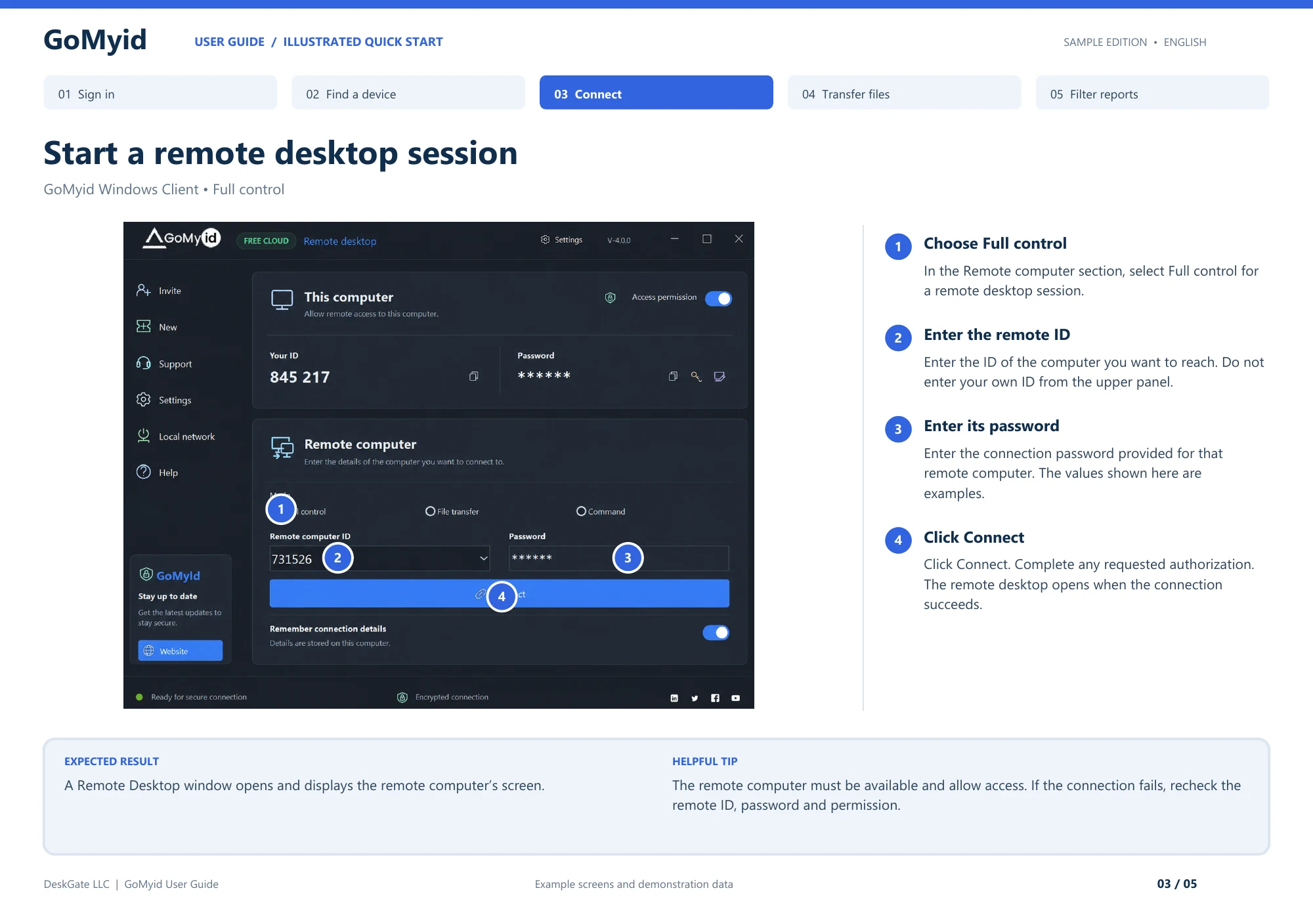
The numbered Windows illustration identifies the four controls needed to request a desktop session. Work in the lower Remote computer area; the upper This computer area describes your own machine.
- Select Full control for an interactive remote desktop session.
- Enter the destination in Remote computer ID. Do not copy your own upper-panel ID into this field.
- Enter that destination's connection password in Password. The web administrator account and the remote connection password serve different purposes.
- Click Connect and complete any requested authorization.
The expected result is a Remote Desktop window displaying the destination computer. Before doing real work, have the user identify the expected desktop and perform one harmless action together. If no session opens, recheck the destination ID, its connection password, and the remote computer's access permission in that order. Do not begin by changing an unrelated Windows Remote Desktop setting. The screen shown here is a guide illustration with example values, not a destination readers should try to contact.
What does a remote desktop app for Windows do?
A remote desktop app lets you view and interact with a computer from another device. The remote applications continue to run on the computer being accessed. Your Windows client presents the session and sends your interaction back. That can be useful when you need an office application, want to help someone with a setting, or need to inspect a workstation in another location.
Before downloading anything, decide which computer you are preparing and who will use it. A personal laptop, a shared workstation, and an organization-managed computer may have different rules for installation and saved credentials. If your company manages the device, use its approved installation process. Do not treat an available download button as permission to change a managed system.
Prepare the Windows computer before connecting
Save open work and close applications that are unrelated to the session. This helps keep the desktop understandable and reduces the chance that private information appears unexpectedly. If another person will connect to your computer, tell them the specific task you want help with. A clear request makes it easier to notice when the session is moving beyond what you intended.
Check basic availability on both sides. The computers should be powered on, connected to the intended network, and ready to run the application. A laptop that loses connectivity when moved between networks may interrupt the session. If you expect to work for a while, consider power availability and normal sleep behavior before starting. Avoid changing organization-managed power policies just to get through a support call.
Use the official GoMyid download page to find the current Windows application. Follow the published instructions and any required organizational approval. If Windows or your security software raises an unexpected warning, stop and confirm the download source and application identity. Do not disable protection simply because someone on a phone call tells you it is necessary.
Choose a simple first task that does not involve sensitive documents or system changes. A harmless folder or a blank text document is enough to confirm that you can see and interact with the correct computer. Save installation troubleshooting for a separate step if the application does not open normally. A remote session is easier to diagnose when you already know the local application is functioning.
Understand the GoMyid Windows connection screen
The product overview divides the client into "This computer" and "Remote computer." The first area describes the computer on which that client is running. It shows an ID, a password area, and an access-permission control. The second area contains the information used to initiate a connection to another computer. Reading those labels carefully prevents confusion about whose details belong in which field.
If you are providing help, the destination is normally the other person's computer. Ask them for the details required by your approved workflow and verify the destination before proceeding. If you are receiving help, you should understand which information you are sharing and with whom. Device identification should not be treated as a substitute for permission or identity verification.
The remote connection area shows mode choices, a Remote computer ID field, a Password field, and a Connect button. It also includes a setting to remember connection details. Treat that last option as a decision about the local machine you are using. Saving details on a personal, protected device is different from saving them on a shared workstation or a computer that belongs to someone else.
The screenshots in this guide come from GoMyid's product overview and contain illustrative device information. They explain the layout; their IDs and other displayed values are not connection details for your computer. Labels and layout can also change with product versions. Follow the controls in your installed version while using the screenshot to understand the overall arrangement.
Make the first Windows session deliberately simple
Have the other person remain available through a trusted communication channel. Confirm the target computer and choose the connection mode that matches the task. Enter the required destination details, check them once, and initiate the connection. Complete any applicable approval or authentication steps for the configuration you are using.
When the remote view appears, pause before making changes. Ask the other person to confirm that it is their expected desktop. You can open a harmless folder or move a window to establish that input is reaching the right place. This is especially useful when the local and remote computers use similar wallpapers or application layouts. Similar-looking screens can make it easy to act on the wrong device.
Keep a clear distinction between the Windows desktop behind the client and the desktop inside the remote session. If a keyboard shortcut behaves unexpectedly, do not keep pressing it. First confirm which window has focus and whether the client provides a dedicated control for that action. Repeated shortcuts can create several changes before either person understands what happened.
For a complete walkthrough, follow the guide to connecting to another computer. The sequence includes the human checks around the connection, not just the fields you fill in. Once that process is familiar, you can adapt it to your normal support tasks without skipping destination confirmation.
Make the remote screen comfortable to use
Start by checking whether you can read ordinary interface text. A remote screen that fits inside a small client window may make menus and error messages difficult to interpret. Use the client's available display controls to choose a useful view. If the remote computer has more than one monitor, confirm which display you are viewing before assuming an application has disappeared.
The product overview shows quality and control tools in the remote desktop interface. Their exact behavior should be checked in your installed version. Change one setting at a time and observe the result. If a smaller view improves responsiveness but makes the text unreadable, it has not solved the practical problem. Find a balance that lets you complete the actual task accurately.
Input requires its own check. Type a short, harmless sentence before entering a long path or a complex command. Confirm that the expected characters appear and that the intended window has focus. Keyboard layouts and shortcuts can differ between the local and remote environments. When a symbol is wrong, resolve that mismatch before entering sensitive credentials or configuration values.
For longer sessions, use a comfortable local setup. A stable surface, adequate screen size, and a reliable pointing device can matter as much as application settings. If you are troubleshooting while also talking to the remote user, keep your notes somewhere that will not obscure the session. Simple workspace choices reduce accidental clicks and make explanations easier to follow.
Move files with clear source and destination checks
GoMyid's transfer view shows Local and Remote areas. Read those labels from the perspective of the application you are using, then verify the paths. Before sending a file, agree on its name and the folder where it should arrive. "Put it on the desktop" can be ambiguous if several accounts or sessions are involved.
Start with the smallest useful file and confirm the result at the destination. Do not assume a transfer is complete because the operation began or a progress indicator moved. Open the resulting file when appropriate and check that it is the expected version. If the destination already contains a matching name, understand the replacement prompt before continuing.
Keep file handling separate from remote viewing. A document that stayed on the office computer during a desktop session may become a new local copy when transferred. Use approved storage locations and remove unnecessary copies according to your normal process. For business information, the destination computer should be appropriate for the data involved, not simply convenient at that moment.
If you are unsure whether file transfer is the right mode, compare it with the alternatives in the remote access workflow explanation. The goal is to accomplish the task with a clear understanding of where work happens and where information ends up.
Use command access only for a defined task
The Windows overview includes a dedicated command console. That can be useful for an experienced operator who has a specific, approved diagnostic or administrative task. It is not a shortcut around understanding the remote environment. A command can affect files, services, or network access without the visual context that a desktop application provides.
Before entering a command, confirm the target computer and explain the intended effect. Prefer a read-only check when you are still diagnosing a problem. Review paths and arguments carefully, especially if they came from a message or another document. Do not paste a collection of commands from an unfamiliar source just because they promise to repair a connection issue.
Plan for actions that could end your own access. Restarting a service, changing network settings, or rebooting the computer can interrupt the session. Arrange for a local person or an approved recovery method when necessary. A successful command submission is not evidence that the resulting system state is healthy; verify the intended result afterward.
Troubleshoot a failed connection in order
First, check the target identity. Confirm the remote ID using a trusted channel and make sure you have not entered your own computer's ID. Then verify that the remote application is open or available as required by your setup. Ask the person at the remote computer what they see instead of guessing from the local client's behavior.
Second, check authentication and permission. An incorrect credential and a disabled access setting are different problems. Follow the application's supported process for the configuration you are using. Do not keep trying unrelated passwords or ask the user to expose credentials in a public ticket. A careful correction is more effective than repeated attempts with uncertain information.
Third, check availability. Is the remote computer asleep, disconnected, restarting, or waiting for someone to complete a local step? A network indicator can help, but it is not a complete diagnosis. The user being able to load a website does not prove every required application connection is available. If a managed network is involved, use the approved support path for network restrictions.
Finally, record the exact message and when it appeared. "It failed after I clicked Connect" is more useful than "the app is broken," and a specific error text is better still. Remove private IDs or credentials before sharing a screenshot outside the intended support channel. Keep changes small enough that you can identify which one resolves the issue.
What if the session connects but feels slow?
Separate a slow desktop from a slow remote connection. Ask whether the remote person sees the same delay when using the computer locally. If the application itself is busy, changing remote display settings may not address the cause. Conversely, a responsive local desktop with delayed remote updates suggests a different part of the workflow needs attention.
Try a simple, repeatable action such as opening a folder and moving its window. If available, adjust the session's quality settings and compare the same action again. Avoid testing with a constantly changing workload while also changing several settings. You want enough consistency to tell whether the adjustment improves practical use.
Check network stability and competing activity on both sides. A large transfer or an unstable wireless link can affect the session. Use an approved, more stable connection when available, and keep expectations realistic for detailed visual work. Do not turn off security controls as a general performance remedy. The software evaluation guide describes a repeatable way to assess responsiveness.
Finish the session and review saved access
Save the work you intended to complete and let the remote person try the original task again. If you changed an application setting, explain the change in ordinary language. For a business support request, record the result and any follow-up needed. A session ending without an error is not the same as the user's problem being resolved.
Disconnect through the client and confirm the expected state on the remote side. Consider whether remembered connection details should remain on the local computer. If the device is shared, borrowed, or no longer trusted for this purpose, follow the appropriate cleanup process. Ending one session does not necessarily remove the ability to start another later.
Avoid shutting down or signing out of the remote Windows account unless that is part of the agreed task. Other work may still be open. If a restart is required, explain the interruption and the reconnection plan before initiating it. A good ending protects the user's work and leaves no uncertainty about whether support is still connected.
Frequently asked questions
Do I need to turn on Windows' built-in Remote Desktop?
Do not assume that setting is required for a separate remote access application. Follow GoMyid's current setup instructions for your chosen workflow. Windows' built-in feature and GoMyid are distinct products with their own configuration requirements. Changing an unrelated Windows setting can make troubleshooting harder and may create access you did not intend to enable.
Will the app work on my Windows version?
Check the current download and product documentation for the version and architecture you use. A screenshot of one Windows desktop does not establish support for every Windows release. If your organization standardizes on a particular build, include that build in your pilot. Do not infer compatibility merely because an installer can be downloaded on the device.
Can I connect from Android to a Windows computer?
GoMyid's product overview includes an Android connection workflow and remote screen controls. Confirm the current supported configuration, then test the specific task you plan to perform. A phone can be useful for a brief check, while detailed Windows work may be more comfortable with a keyboard and larger screen. The destination still needs to be available and appropriately authorized.
Should I remember connection details?
Only when the local device and your access responsibilities make that appropriate. Remembered details can reduce repeated entry, but they also outlast the immediate support call. Be particularly careful on shared or borrowed computers. Review stored access when devices change hands, support responsibilities change, or you no longer need to reach the destination.
Can I restart the remote computer during support?
Only as part of an agreed task with a recovery plan. A restart interrupts the session and may require local action before access returns. Save open work, explain what will happen, and confirm how you will reconnect. If nobody is available at the remote location, verify the deployment's documented restart behavior before relying on it.
Where should I get the Windows client?
Start at the official GoMyid download page rather than a third-party download listing or an unsolicited link. For a company computer, follow the organization's approved distribution process. After setup, use the first-connection steps with a trusted person so you can verify both the connection and its ending.
Interface reference: GoMyid User Guide, page 3: Start a remote desktop session. The illustrated Windows client shows version 4.0.0. This article uses the documented example interface; it does not report a live deployment test.